Power Automate Use Cases for Every Team and Industry
Dec 16, 2025 Aiswarya Madhu
Power Automate has quietly become one of the most widely adopted automation platforms in the world, with more than 14,847 companies using it in 2025 to streamline operations, cut manual work, and move faster than traditional processes ever allowed.
A Forrester study shows organizations are seeing a 248 percent ROI in three years, with most recovering their investment in under six months.
The efficiency gains are just as compelling. In high volume workflows like data entry or invoice processing, teams are reclaiming more than 200 hours per employee. Some organizations have cut manual workloads from 650 hours a month to just 12.5 hours a year. Sales teams using automation report deal cycles that are 78 percent shorter, and marketing teams see up to 451 percent more qualified leads at significantly lower cost.
Now let’s look at the essential Power Automate use cases that show exactly how teams use automation in real workflows.
What Power Automate Is Really Used For? (The Four Value Pillars)
Universal Power Automate Use Cases That Every Business Depends On
- 📧Email Notifications and Alerts: Automate lead alerts, HR deadlines, and reminders across departments.
- 📝Document Approvals and Policy Reviews: Route invoices, contracts, and documents for automated approvals.
- 🔄Data Synchronization Across Systems: Keep ERP, CRM, and apps in sync automatically.
- 💰Invoice and Expense Processing: Automate incoming invoices and employee claims to save time and reduce errors.
- 💬Customer Communication Triggers: Auto-send order confirmations, ticket updates, and feedback requests.
- 📋Project and Task Automation: Assign tasks, send status updates, and distribute docs at milestones.
- 📂File Management and Attachment Handling: Auto-tag, save, and sort incoming files and attachments.
- 📊Reporting and Power BI Alerts: Trigger alerts and distribute dashboards when metrics hit thresholds.
- 👤Employee Onboarding Tasks: Send welcome emails, provision accounts, and assign first tasks automatically.
- 📆Meeting Scheduling and Follow-Ups: Automate meeting invites, reminders, and post-meeting recaps.
Power Automate Use Cases by Department
Let’s see how you can make use of Power Automate inside the department you work in:
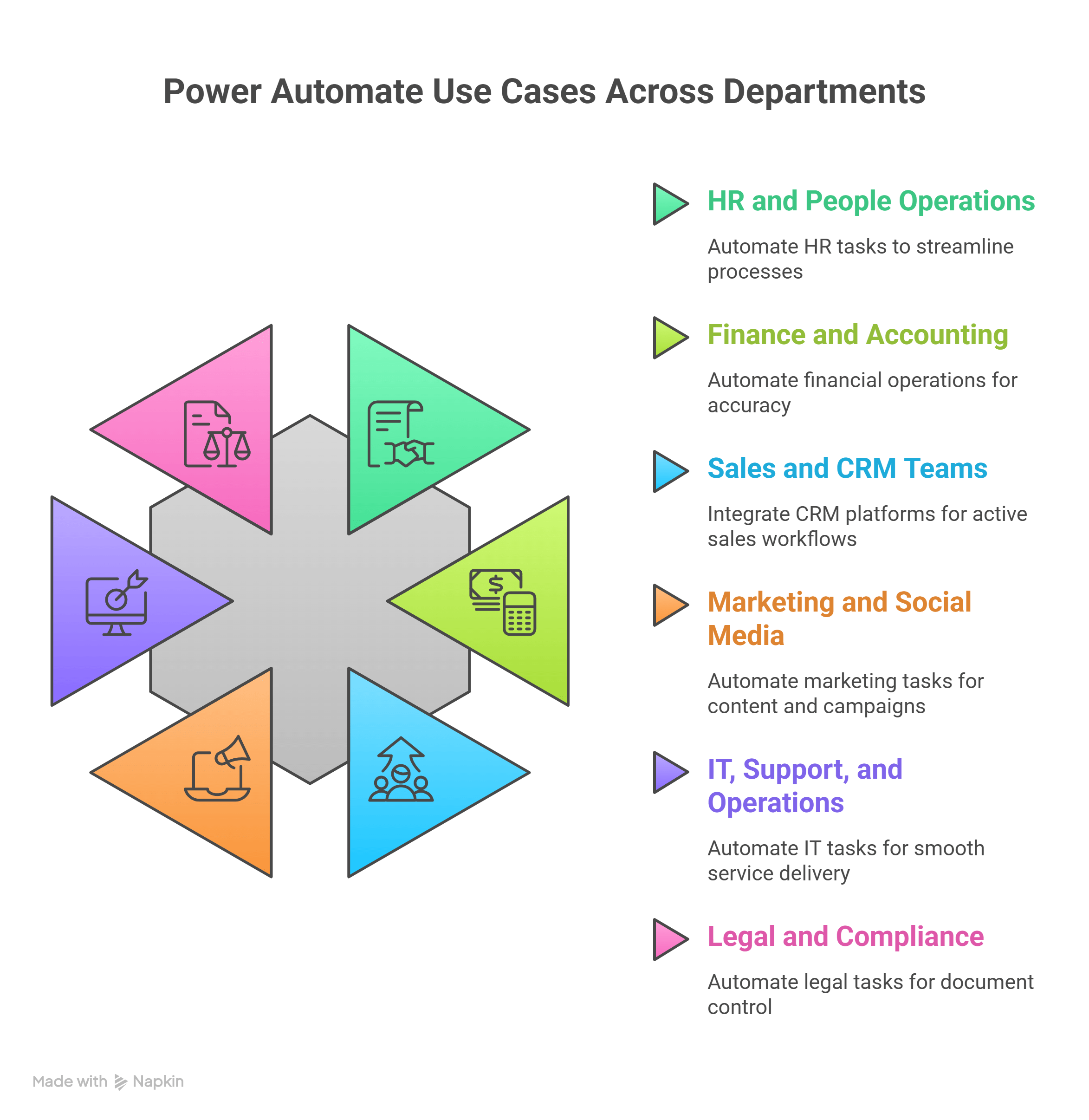
HR and People Operations
- 👥Sending welcome emails, creating Teams posts, and assigning tasks in Planner when a new hire record is added
- 📅Routing leave requests submitted through Microsoft Forms to the right approver and updating Outlook calendars
- 📚Sending training reminders through recurrence triggers using a SharePoint list of mandatory courses
- ⚠️Alerting HR when compliance deadlines are missed or documents are pending
Finance and Accounting
- 🧾Capturing supplier invoices from Outlook and extracting information using AI Builder
- 💾Storing invoice attachments in SharePoint or OneDrive and pushing validated data into ERP systems
- 🧑💼Routing expense approvals and updating the finance system after final approval
- ⏰Creating date-based triggers for tax filings, payment cutoffs, and compliance reminders
Sales and CRM Teams
- 📈Assigning new leads instantly based on territory or product category and notifying sellers in Teams
- 🔔Triggering follow-up reminders when opportunities remain untouched for a set duration
- 🔄Syncing CRM data with marketing tools and Excel to maintain a consistent customer view
- 📩Creating tasks from prospect emails so sellers never miss an update
Marketing and Social Media
- 📢Publishing scheduled campaign posts from a SharePoint library to LinkedIn or other connected channels
- 📡Monitoring brand mentions using Bing News Search or sentiment analysis in AI Builder
- ✅Running content approval flows in Teams to maintain a consistent review process
- 📁Moving campaign assets across draft, review, and final folders to maintain structure and timing
IT, Support, and Operations
- 🛠️Creating support tickets in ServiceNow or Jira from Microsoft Forms or incoming emails
- 📊Triggering SLA-based escalations when issues are not resolved on time
- 💼Tracking hardware check-in and check-out events using SharePoint lists and sending Teams alerts
- 👤Starting user provisioning in Active Directory as soon as HR adds a new employee
Legal and Compliance
- 📄Triggering review and approval flows when new contract versions are uploaded in SharePoint
- 📆Sending renewal reminders using date-based triggers from Excel or SharePoint
- 📣Publishing approved policy updates to the compliance knowledge base and notifying employees
- ⏳Sending reminders to clients or internal teams for required submissions or upcoming obligations
Automate repetitive work with Power Automate workflows tailored to your Microsoft 365, Dynamics 365, and business apps.
Power Automate Industry Use Cases: What You Can Automate in Your Sector
One of the best things about Power Automate is how easily you can adapt it to your industry. No matter what sector you work in, there are everyday tasks you can streamline right away. Once you see these examples, you will recognize processes in your own work that are perfect for automation.
Power Automate adapts to every industry by turning recurring tasks into structured workflows. Below are practical examples of how each sector can automate daily processes without manual effort.
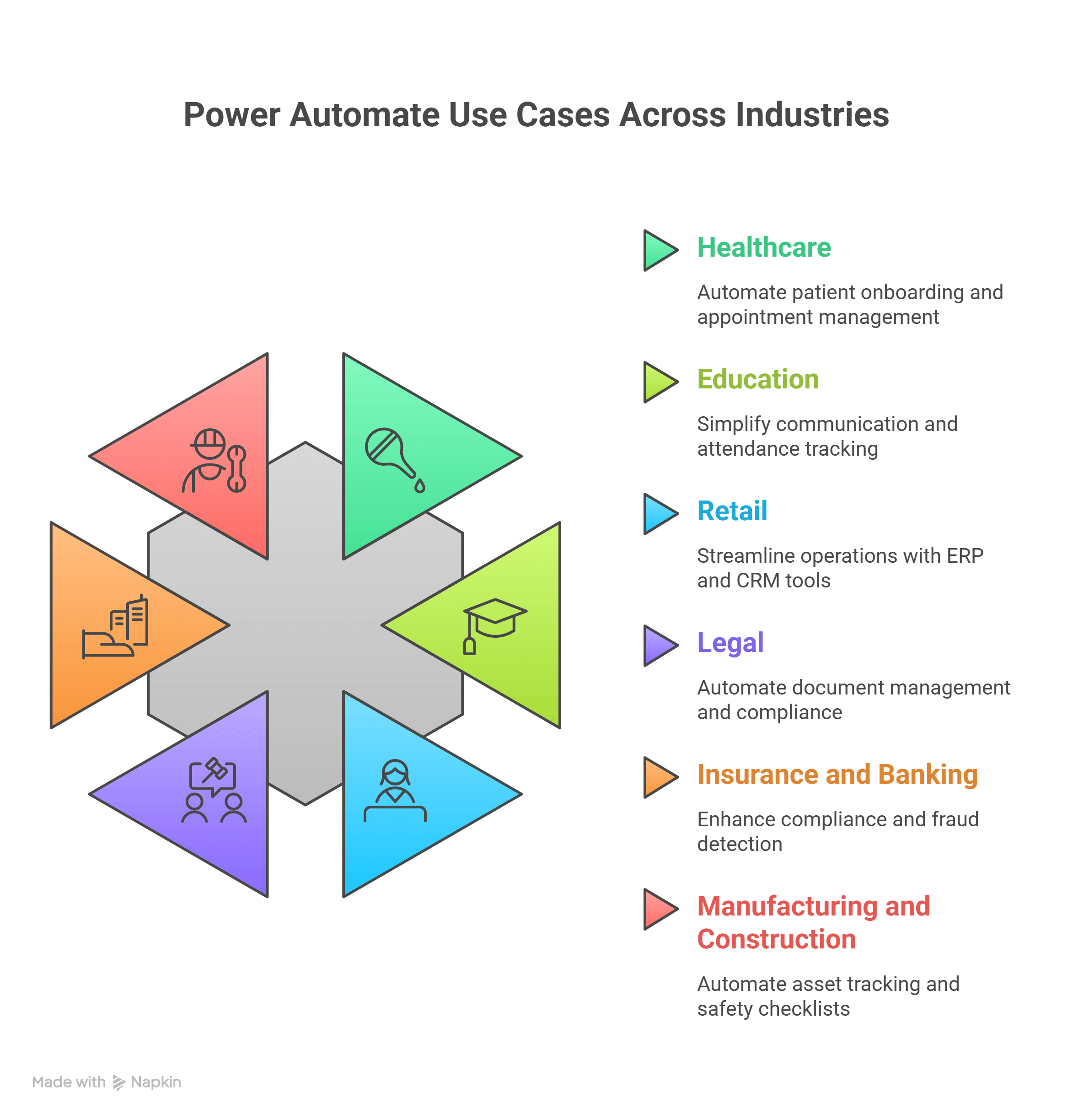
Healthcare
- 🏥Triggering patient onboarding workflows when new forms are submitted and storing details in your EHR
- 📂Creating SharePoint folders automatically for new patients and sending onboarding messages through Outlook
- 📅Managing appointment scheduling with automatic calendar bookings, reminders, and follow up surveys for missed visits
- 🧠Using AI Builder to extract data from claim documents and routing them through validation and approval steps
- 📋Directing medical record requests to the right department and logging communication updates automatically
Education
- 📚Sending assignment notifications when new files are uploaded to class folders
- 📝Recording attendance from digital forms directly into Excel or LMS databases
- 🎓Managing event registrations by sending confirmations and logging participants in SharePoint lists
- 📊Automating semester end feedback surveys and compiling results into Power BI dashboards
Retail
- 💳Extracting invoice data with AI Builder from vendor emails and updating finance systems
- 🚚Triggering order tracking alerts via email or SMS when status changes occur in the CRM or POS
- 📦Monitoring inventory levels in Excel or SQL and sending threshold-based stock alerts
- 💬Sending personalized offers using CRM purchase history and email automation tools
- 📆Syncing schedule updates from Excel or SharePoint directly to employees through Teams or SMS
Legal
- 🗂️Generating documents from Word templates when new case data is logged in SharePoint
- ⏰Using date-based triggers to send reminders for legal filings and compliance deadlines
- 📰Aggregating regulatory updates from RSS feeds or APIs and notifying legal teams by email or Teams
- 📨Automating client communication flows so responses follow structured approval paths before sending
Insurance and Banking
- 📄Automating claims from submission to document verification using AI Builder and routing based on claim value
- 🚨Triggering fraud alerts from Excel or SQL anomaly checks and notifying investigators
- 📈Sending personalized portfolio alerts when market indicators cross configured thresholds
- 🗃️Scheduling regulatory reports by collecting data from multiple systems and saving audit-ready files in SharePoint
Manufacturing and Construction
- 🏗️Tracking assets with IoT or barcode scans and updating centralized logs
- 🛠️Routing new work orders to technicians when forms or system updates occur
- 🦺Sending daily safety checklists to field staff and collecting responses for compliance reporting
- 🔄Managing equipment with automated check-in and check-out logs and sending overdue reminders
Get Started with Power Automate
If you are new to Power Automate, the core idea is simple. You create a series of steps called a flow that completes a repetitive task automatically. The platform acts like a digital assistant that runs in the background and handles reminders, notifications, data entry, emails, and even multi-step business workflows. Here’s how to get started:
Access Power Automate
- 🔑Sign in at office.com and open the app launcher to find Power Automate
- 🧭Scroll through the app list and select Power Automate
- 💻You can also download Power Automate for desktop if you want to build automation that interacts with your local machine
The home screen shows templates, learning modules, and your existing flows. Templates are helpful because they show which apps are used and how the steps are organized.
Understand Flows
A flow is an automated process triggered by something you define. Once triggered, the flow performs one or more actions. You can build flows in three ways:
- 📅Scheduled flows that run at fixed intervals
- ⚡Automated flows that start when a specific event happens
- ✋Instant flows that you trigger manually
Example 1: Scheduled Flow
Use Case: Send a daily email reminder.
- Set a recurrence trigger for specific times
- Add an action to send an email through Outlook or Gmail
- Customize the content, recipients, and advanced options such as CC and BCC
- Save and test the flow to confirm it runs correctly
Example 2: Automated Flow
Use Case: Monitor YouTube for new videos.
- Choose an automated cloud flow
- Select the trigger, such as “when a new YouTube video matches a search”
- Set the search query and recurrence interval
- Add an action, such as sending an email notification whenever a match is found
Example 3: Instant Flow
Use Case: Add data to an Excel table manually.
- Create an instant cloud flow and select “manual trigger”
- Add input fields such as ID, Name, and Sales
- Add an Excel action to insert a new row into a specific table
- Map the input fields to the corresponding table columns
Test and Manage Flows
Every flow can be tested immediately. The platform shows run history, success or failure status, and detailed logs for troubleshooting. You can edit, share, disable, or delete flows anytime.
Did You Know? Power Apps and Power Automate Are Not the Same
Power Apps: The Interface
- Builds custom screens and forms without coding
- Used for data entry, guided steps, questionnaires, and mobile apps
- Does not store data by itself
- Connects to SharePoint, Dataverse, SQL, or Excel to save submissions
Power Automate: The Engine
- Takes over after data is submitted
- Sends notifications, triggers approvals, and updates systems
- Starts with a trigger such as a form response or file update
- Follows rules, conditions, and branches to automate decisions
How They Work Together:
- Power Apps collects the information
- Data is stored in the backend
- Power Automate detects the new entry and runs the workflow
- The result is a complete, end-to-end business process with no manual effort
Conclusion
The momentum behind automation is growing for a reason. Teams get their time back, leaders gain visibility, and processes finally move with consistency instead of manual follow ups.
However, having the right support and expertise is essential to build automation that actually works and scales. Not sure where to begin with Power Automate? Our consultants can help. We assess your workflow challenges and provide practical, reliable guidance from assessment to implementation. Connect with our experts today to know more
Recent Posts

Proven Methods to Reduce Business Central Upgrade Time by 40%
Mar 19, 2026

Prepare for Business Central Release Waves [Here's What to Fix Before You Upgrade]
Mar 19, 2026

The Business Central Shift in Recent Release Waves Customers Cannot Afford to Ignore
Mar 19, 2026
Category
Our Expertise



About Author

Aiswarya Madhu
Aiswarya Madhu is an experienced content writer with extensive expertise in Microsoft Dynamics 365 and related Microsoft technologies. With over four years of experience in the technology domain, she has developed a deep understanding of Dynamics 365 applications, licensing, integrations, and their role in driving digital transformation for organizations across industries.
Never Miss News
Want to implement Dynamics 365?
We have plans which will meet your needs, and if not we can tweak them around a bit too!