WooCommerce Dynamics 365 Integration [A Complete Guide]
Apr 28, 2026 Aiswarya Madhu
It often begins with a small operational issue that keeps repeating. An order comes through the WooCommerce store. The customer receives the confirmation email instantly, but inside the business the process is not quite as smooth. Someone from the operations team still needs to enter that order into the ERP so the warehouse can begin fulfillment. At the same time, inventory numbers in the online store and the warehouse system do not always match. A product may still appear "in stock" on the website even though the last unit left the warehouse earlier that morning.
For many growing e-commerce companies, this slowly becomes part of the daily routine. Teams spend hours copying order data between systems, correcting inventory mismatches, and responding to customer questions about order status or product availability.
A mid-sized hardware and electrical retailer experienced this exact situation when their online sales started increasing. Their WooCommerce storefront handled customer orders well, while Microsoft Dynamics 365 Business Central managed inventory, pricing, and financial operations. The difficulty was that the two systems were not connected. Orders had to be entered manually, pricing updates required duplicate work, and stock levels could easily fall out of sync.
Once the storefront and ERP were integrated, the workflow changed. Orders placed on the website began appearing automatically inside Dynamics. Inventory updates flowed back to the storefront in real time, preventing overselling. Pricing adjustments and discounts could be managed in the ERP and reflected immediately online.
Similar outcomes are reported across many WooCommerce–Dynamics integrations. Some distributors have reduced manual order entry by nearly sixty percent after connecting the two platforms. Others have shortened their order-to-cash cycle and improved fulfillment accuracy simply by allowing their storefront and ERP to share data automatically.
More importantly, teams spend less time correcting data and more time focusing on fulfillment efficiency, customer experience, and growth.
In this guide, we will explore how WooCommerce Dynamics 365 integration works, what data synchronizes between the systems, and the most practical ways businesses implement this integration today.
What Microsoft Dynamics 365 Offers for WooCommerce Businesses
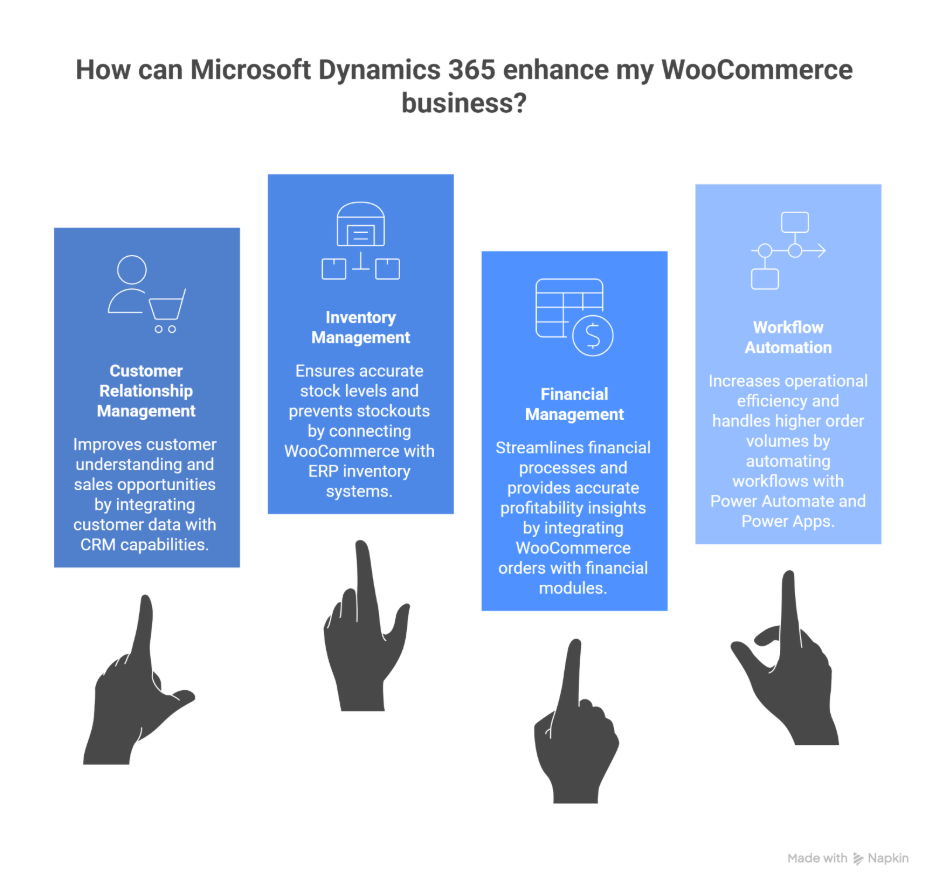
Integrating WooCommerce with Microsoft Dynamics 365 does more than simply move orders between systems. Dynamics extends the operational capabilities of an e-commerce business by connecting sales, inventory, finance, and automation within a single platform. Instead of managing multiple disconnected tools, businesses can operate their storefront and backend operations through a unified environment that supports growth and operational efficiency.
Customer Relationship Management
Microsoft Dynamics 365 CRM helps businesses maintain a complete view of every customer interacting with the WooCommerce store. Customer profiles can include purchase history, support conversations, email interactions, and service records tied directly to individual accounts.
Sales teams can review past orders and engagement history to identify upsell or cross-sell opportunities. Support teams gain visibility into order timelines, shipping status, and previous inquiries, allowing them to respond faster to customer issues. Marketing teams can use segmentation tools and behavioral data to run more targeted campaigns based on purchase activity.
By connecting WooCommerce customer data with CRM capabilities, businesses gain deeper insight into how customers interact with the brand across the entire lifecycle.
Inventory and Supply Chain Management
Dynamics 365 also strengthens inventory and supply chain operations for WooCommerce businesses. Platforms such as Dynamics 365 Business Central or Dynamics Finance and Operations provide advanced inventory management across multiple warehouses, suppliers, and distribution centers.
When integrated with WooCommerce, inventory availability can be calculated directly from ERP stock levels. This allows the storefront to display accurate product availability based on current stock minus reserved quantities or other operational constraints.
Beyond simple stock tracking, Dynamics can support demand forecasting, procurement planning, and vendor management. These capabilities help businesses maintain optimal stock levels and prevent situations where customers place orders for products that are no longer available.
Financial Management
WooCommerce orders can also flow directly into Dynamics 365 financial modules. Once synchronized, the system can automatically generate invoices, record payments, and update accounts receivable records.
This integration helps businesses reconcile online sales with financial records without manual spreadsheet tracking. Tax calculations, regional compliance requirements, and financial reporting can also be managed within the ERP system.
As a result, WooCommerce revenue becomes part of the broader financial ecosystem of the business, allowing leadership teams to monitor profitability, cash flow, and financial performance more accurately.
Workflow and Process Automation
Microsoft Dynamics 365 integrates with tools such as Microsoft Power Automate and Power Apps to automate operational workflows tied to WooCommerce activity.
For example, new orders placed through WooCommerce can trigger automated notifications to warehouse teams, initiate fulfillment workflows, or update customer portals with shipping information. Inventory alerts can automatically notify procurement teams when stock levels fall below defined thresholds.
AI-driven capabilities such as Microsoft Copilot can also summarize operational data, highlight potential delays in order fulfillment, or provide insights into sales trends.
Through automation, WooCommerce businesses can handle higher order volumes and operational complexity without increasing manual workload.
Key Data That Syncs Between WooCommerce and Dynamics 365
WooCommerce Dynamics 365 integration goes beyond simply connecting two systems. Its real purpose is to maintain consistent operational data across the storefront and the ERP or CRM backend. Most integrations synchronize a set of core datasets that keep sales, inventory, and customer information aligned in real time. These integrations typically support bidirectional synchronization for some data types while others flow in a single direction depending on operational requirements.
Products
Product data usually synchronizes in both directions between WooCommerce and Dynamics 365. This includes information such as SKU numbers, product names, descriptions, categories, images, pricing, and product variants like size or color.
In many implementations, Dynamics acts as the central product catalog where pricing updates, new items, or attribute changes originate. These updates automatically appear on the WooCommerce storefront so customers always see the latest product information. At the same time, products created or modified in WooCommerce can also be pushed back into Dynamics to maintain catalog consistency.
This synchronization ensures that the business operates from a single, unified product catalog instead of managing multiple disconnected product lists.
Inventory Levels
Inventory data typically flows from Dynamics 365 to WooCommerce because the ERP system manages warehouse operations and stock quantities.
Stock levels are updated either at scheduled intervals or in real time depending on the connector configuration. Some integrations calculate available stock using formulas such as current stock minus committed quantities or by factoring in incoming purchase orders.
These updates ensure that the WooCommerce storefront reflects the actual inventory available in the warehouse. As a result, businesses reduce the risk of overselling products that are no longer available.
For companies operating multiple warehouses, the integration can also map location codes in Dynamics to stock visibility rules within WooCommerce.
Orders
Orders placed through WooCommerce are automatically transferred to Dynamics 365 as sales orders. The integration typically captures detailed order information including product line items, quantities, pricing, shipping charges, taxes, and applied discounts.
Once the order reaches Dynamics, it can trigger downstream workflows such as picking, packing, shipping, and invoicing.
Order status updates inside Dynamics, such as shipment confirmation or refunds, can also flow back to WooCommerce so customers see accurate order tracking information on the storefront.
This automated order synchronization significantly reduces manual order entry and improves fulfillment efficiency.
Customers
Customer profiles also synchronize between the two systems to maintain consistent records across sales and operations.
Information such as customer names, email addresses, phone numbers, billing details, shipping addresses, and purchase history can move from WooCommerce into Dynamics where it becomes part of the CRM database.
At the same time, customer records created inside Dynamics can be pushed to WooCommerce as registered user accounts, enabling login access and personalized shopping experiences.
In cases where customers place orders without creating an account, guest checkout data is usually mapped to default customer records within Dynamics while still retaining order history.
Invoices and Payments
Financial data related to WooCommerce transactions can also synchronize with Dynamics accounting modules. This includes payment records, transaction IDs, order totals, invoice details, and payment status updates.
Once the order reaches Dynamics, it can trigger invoice creation and update accounts receivable records automatically. Refunds or payment status changes can also be reflected in the ERP system.
When shipping and tracking details are generated in Dynamics, they can be synchronized back to WooCommerce so customers can track their orders through the storefront.
Explore More Dynamics 365 Integrations
Dynamics 365 Business Central Power BI Integration – A Complete Guide
Dynamics 365 ChatGPT Integration Methods
Dynamics 365 Shopify Integration – Methods, Benefits, and Tips
Dynamics 365 Gmail Integration – A Guide for SMBs
Microsoft Dynamics 365 Salesforce Integration Methods [+ Top Features]
Dynamics 365 Mailchimp Integration – A Complete Guide
WooCommerce Dynamics 365 Integration Methods
There are multiple ways to integrate WooCommerce with Microsoft Dynamics 365, and the best approach usually depends on business size, transaction volume, and operational complexity. Some businesses prefer quick automation tools, while others implement more robust middleware or custom API integrations to support large-scale e-commerce operations.
1. Integration Using Middleware and Automation Platforms
Middleware platforms act as a bridge between WooCommerce and Dynamics 365. They manage data exchange between systems, handle transformation logic, and ensure that orders, customers, and inventory remain synchronized.
These platforms connect to both systems through APIs and provide a centralized environment for configuring workflows, monitoring transactions, and handling errors.
Typical integration workflow includes:
- Connecting the WooCommerce API and the Dynamics 365 environment to the middleware platform.
- Mapping entities such as products, inventory levels, orders, and customers between both systems.
- Defining synchronization rules that determine when and how data moves between systems.
- Scheduling updates using real-time event triggers or periodic synchronization jobs.
Middleware tools often support both simple automation workflows and more advanced bidirectional synchronization. For example, a new WooCommerce order can automatically create a sales order in Dynamics 365, while stock updates in Dynamics can immediately update product availability on the storefront.
Many integration automation tools and iPaaS platforms fall into this middleware category. Some solutions focus on simple event-based automation, while others support enterprise-grade integrations capable of handling thousands of transactions per day. And this kind of an approach works well for businesses that want a scalable integration layer without building custom code.
2. Using WooCommerce Plugins or Connectors
Another approach involves installing dedicated connectors or plugins designed for WooCommerce and Dynamics integration. These plugins operate within the WordPress environment and connect to Dynamics using APIs.
Once configured, the connector synchronizes key datasets such as:
- Products and pricing
- Inventory availability
- Orders and order status
- Customer profiles
Orders placed on the WooCommerce storefront can automatically appear as sales orders inside Dynamics, while inventory updates inside Dynamics can update product availability on the website.
For many WooCommerce stores, connectors provide a relatively simple way to integrate with Dynamics without introducing a separate middleware platform.
3. Custom API Integration
Organizations with complex workflows or specialized operational requirements may choose to build a custom integration using APIs.
WooCommerce exposes a REST API that allows developers to access product, order, and customer data programmatically. Dynamics 365 provides web services and APIs that enable similar access to ERP and CRM data.
A custom integration can use these APIs together with event-driven triggers to synchronize data between the systems. Middleware services built in frameworks such as Node.js or PHP can handle transformation logic, validation rules, and workflow orchestration.
In some cases, low-code automation tools such as Microsoft Power Automate are also used to orchestrate integration workflows without extensive development.
Custom API integrations provide the greatest flexibility, but they also require ongoing maintenance and development of resources.
Planning WooCommerce Dynamics 365 Integration?
Talk to our Dynamics 365 integration specialists and discover the best way to sync orders, customers, and inventory between WooCommerce and your ERP.
WooCommerce Dynamics 365 Integration Best Practices
A WooCommerce and Dynamics 365 integration can significantly streamline operations, but the success of the integration depends heavily on how the setup is planned and configured. Instead of connecting both systems and hoping the synchronization works correctly, businesses should follow a structured implementation process that ensures accurate data flow, stable automation, and minimal operational disruptions.
Prepare the WooCommerce API Environment
The integration typically begins by enabling the WooCommerce REST API inside the WordPress environment. This allows Dynamics 365 or the connector platform to securely communicate with the online store.
Within the WooCommerce settings panel, administrators should generate API keys with read and write permissions for orders, products, and customers. These credentials allow the integration platform to push and retrieve data between the two systems.
Before proceeding further, it is important to test the API connection to ensure that the store endpoints are accessible and returning product or order data correctly. Establishing this connection early prevents authentication or security issues later in the integration process.
Install and Configure the Dynamics Connector
Once the API connection is ready, the next step is installing the WooCommerce connector within Dynamics 365. Many organizations deploy connectors available through Microsoft AppSource or integration platforms.
After installation, the connector typically creates configuration pages that allow administrators to define the connection settings. These include the WooCommerce store URL, API credentials, and store identifiers.
Proper configuration at this stage ensures that the ERP system can securely communicate with the WooCommerce environment and begin exchanging data.
Map Products, Inventory, Customers, and Orders
One of the most critical parts of the Woocommerce Dynamics 365 integration process is data mapping. Both systems use different structures for products, customers, and orders, so clear mapping rules must be defined.
Product SKUs in WooCommerce should align with item numbers in Dynamics. Product details such as descriptions, categories, pricing, and images should also be synchronized where necessary.
Inventory mapping is equally important. Warehouse or location codes in Dynamics should correspond to stock levels shown in WooCommerce to ensure accurate product availability.
Customer records typically synchronize using email addresses as unique identifiers. This allows both systems to maintain a unified customer profile with order history, addresses, and tax details.
Order mapping ensures that orders placed in WooCommerce automatically generate corresponding sales orders inside Dynamics, with payment methods and order statuses translated correctly between the platforms.
Define Synchronization Rules and Automation Triggers
After mapping the data structures, synchronization rules must be configured carefully. Businesses must decide how and when information moves between the systems.
Many integrations operate with bidirectional synchronization, where updates in one system automatically update the other. In some cases, organizations choose a unidirectional flow. For example, inventory may flow only from Dynamics to WooCommerce to prevent conflicts.
Automation triggers also need to be configured. Real-time webhooks are often used for events such as new orders, while scheduled synchronization jobs handle tasks like inventory updates every few minutes.
Filters may also be applied to exclude draft orders, products without stock, or certain order types that should not trigger synchronization.
Test End-to-End Operational Workflows
Before deploying the integration into a production environment, businesses should perform full workflow testing.
A typical test scenario might involve creating a product in Dynamics and confirming that it appears correctly on the WooCommerce storefront. Next, a sample order should be placed through the online store to verify that the order is generated inside Dynamics and that fulfillment workflows are triggered correctly.
Inventory updates should also be tested to confirm that stock changes inside Dynamics are reflected accurately on the storefront.
During this stage, monitoring synchronization logs is essential. Logs help detect authentication issues, mapping conflicts, or failed transactions that could cause data mismatches.
Deploy to Production and Automate Monitoring
Once testing confirms that workflows function correctly, the integration can be moved to the production environment. Production API credentials should replace staging keys, and automated synchronization should be enabled.
Organizations often implement monitoring alerts to detect integration failures. For example, workflows in Microsoft Power Automate can notify administrators if synchronization errors occur.
Integrating analytics platforms such as Power BI can also provide deeper insights into WooCommerce sales performance, order volumes, and inventory trends by pulling data directly from Dynamics.
Plan for Advanced Integration Scenarios
As businesses scale, they may expand their integration capabilities beyond the basic setup.
Some organizations operate multiple WooCommerce storefronts and connect them to different warehouses or business units inside Dynamics. Others map custom product attributes or advanced fields between the two systems.
Event-driven integrations can also be enhanced through automation tools that trigger notifications, reporting workflows, or fulfillment actions when specific order conditions are met.
For high-volume environments processing thousands of transactions daily, organizations may extend integration logic using cloud services such as Azure functions to handle complex processing requirements.
Final Thoughts
When it comes to e-commerce and ERP or CRM integration, it is ultimately about connecting the operational backbone of the business with the customer-facing storefront. Systems like WooCommerce and Microsoft Dynamics 365 are powerful on their own, but their real value emerges when they operate as a unified ecosystem rather than isolated platforms.
A well-designed integration ensures that orders, inventory, customer data, and financial records move seamlessly across the organization. Instead of spending time reconciling systems or correcting data mismatches, teams can focus on fulfillment efficiency, customer experience, and business growth.
If your organization is planning WooCommerce Dynamics365 integration, get in touch with our Dynamics 365 integration experts to evaluate your current architecture, design the right integration approach, and build a scalable solution that supports your e-commerce growth.
Recent Posts

Dynamics 365 Activate: Do You Still Need a Migration Partner?
Oct 05, 2026

Tableau to Power BI Migration: A Practical Guide
Sep 09, 2026
SAP ECC to Dynamics 365 Finance & SCM Migration Guide
Sep 09, 2026
Category
Our Expertise



About Author

Aiswarya Madhu
Aiswarya Madhu is an experienced content writer with extensive expertise in Microsoft Dynamics 365 and related Microsoft technologies. With over four years of experience in the technology domain, she has developed a deep understanding of Dynamics 365 applications, licensing, integrations, and their role in driving digital transformation for organizations across industries.
Never Miss News
Want to implement Dynamics 365?
We have plans which will meet your needs, and if not we can tweak them around a bit too!