Power BI SharePoint Integration Guide

Power BI SharePoint Integration Guide

Jan 09, 2026 Aiswarya Madhu

Most teams already use SharePoint. That part is done.

They store task lists there. They upload Excel files. They track issues, customers, orders, and approvals.

But when leadership asks questions like “What’s trending?” or “Where are we stuck?”, SharePoint alone does not help much. That is where Power BI SharePoint Integration comes in.

This guide explains the integration process, how to build reports, embed them in SharePoint, and how to manage security, administration, and collaboration effectively.

Power BI SharePoint Integration Process [With Pre-requisites]

Here you will get a detailed guide to

First, understand the relationship

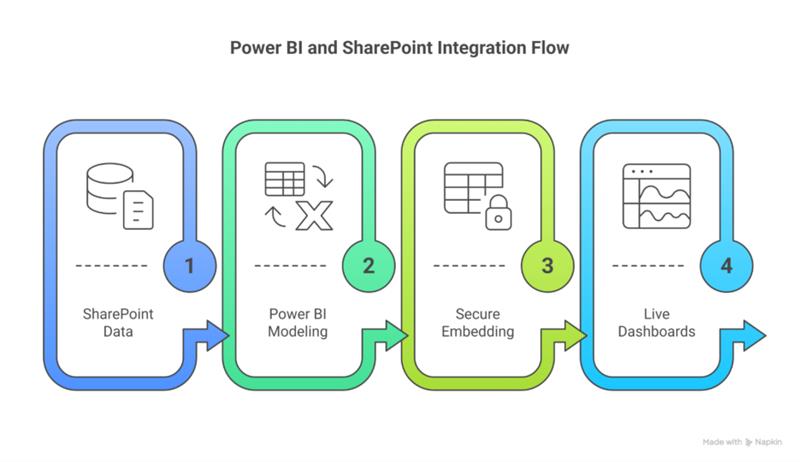
SharePoint is where your data lives.

Power BI reads that data and turns it into charts and reports.

Nothing is permanently copied. Nothing is migrated.

Power BI connects to SharePoint, reads the latest data, and refreshes when the SharePoint data changes.

Step 1: Make sure you are ready

Most failures happen because one prerequisite is missing.

You should have:

  • A SharePoint Online site with data already stored in a SharePoint List or a Document Library
  • Power BI Desktop installed
  • Power BI Pro or Premium Per User license on the same work account
  • Permission to read SharePoint data and publish reports to a Power BI workspace
  • A Microsoft work or school account managed in Microsoft Entra ID
  • MFA enabled if required by your tenant

Step 2: Security is already handled through single sign on

No separate security configuration is required.

When Power BI prompts you to sign in:

  • Use the same Microsoft work account used for SharePoint
  • Complete MFA if prompted

Power BI enforces SharePoint permissions and Power BI access rules. Embedding does not bypass security.

Step 3: If your data is in a SharePoint List

This is the most common source for operational data.

Connection steps in Power BI Desktop:

  1. Open Power BI Desktop
  2. Select Get Data, then SharePoint Online List
  3. Paste the SharePoint site URL, not the list URL
  4. Authenticate with your organizational account
  5. Select the required list
  6. Choose Transform Data if cleanup is needed, otherwise Load
Power BI SharePoint Integration Flow

Step 4: What data preparation usually means

For SharePoint Lists, preparation is typically minimal.

Common actions:

  • Remove unnecessary columns, including system fields
  • Rename columns to business friendly names
  • Confirm correct data types for dates and numbers
  • Expand Person, Lookup, and Choice columns to readable values

Step 5: If your data is in files stored in SharePoint

Excel and CSV files in Document Libraries can be used directly.

Supported approaches:

  • SharePoint Folder connector for libraries or folders
  • Web connector for specific file URLs

Authentication uses the same Microsoft work account. Dataset refresh pulls updated file content automatically.

Step 6: Quick report options and limitations

Legacy one click options such as Visualize this list or Visualize this library are being deprecated.

For reliable reporting:

  • Use Power BI Desktop for report creation
  • Or create datasets directly inside the Power BI Service
  • Avoid relying on deprecated SharePoint visualization features

Step 7: Publish the report to the Power BI Service

From Power BI Desktop:

  • Save the report
  • Select Publish
  • Choose the appropriate workspace
  • Confirm the report opens correctly in the Power BI Service

Step 8: Embed the report in a SharePoint page

To display reports inside SharePoint:

  • Copy the SharePoint embed link from the Power BI Service
  • Edit a modern SharePoint page
  • Add the Power BI web part
  • Paste the report URL
  • Publish the page

Embedding only displays reports for users who already have Power BI access.

Step 9: Control access and permissions

SharePoint page access does not grant Power BI report access.

Best practices:

  • Align SharePoint and Power BI audiences
  • Assign Viewer access for most users
  • Reserve edit roles for report owners
  • Use Microsoft 365 Groups or Teams for consistent access management
  • Always validate access using a standard viewer account

Step 10: Add extra security when required

For sensitive data:

  • Use Row Level Security to restrict visible records
  • Apply Sensitivity Labels for governance and compliance

Security rules apply consistently even when reports are embedded.

Step 11: Configure refresh behavior

In the Power BI Service:

  • Set scheduled refresh on the dataset
  • No gateway is required for SharePoint Online
  • Choose refresh frequency based on data change patterns
  • Monitor refresh history and re authenticate if required

You might be interested in reading this:

An in-depth look at how organizations integrate Salesforce with Power BI, where native reporting falls short, and which integration approach works best at different scales.
A complete guide on how Dynamics 365 Business Central integrates with Power BI, including prerequisites, integration options, and real-world reporting scenarios for finance and operations teams.
A practical guide on how Dynamics 365 integrates with Power BI, covering architecture choices, security considerations, and real-world reporting use cases across modules.

What Happens After the Integration Is Live?

Once Power BI is connected to SharePoint and reports are published, the technical setup is complete. What matters next is how those reports are actually used inside the organization.

This is the point where Power BI SharePoint integration stops being a configuration exercise and starts changing daily workflows. Teams no longer treat analytics as something separate that lives inside Power BI. Insights move into SharePoint pages where work already happens.

The sections below explain how organizations typically use Power BI inside SharePoint once the integration is live. They focus on where reports are consumed, how data is kept secure, and how analytics become part of everyday collaboration rather than a separate reporting activity.

Analytics Appear Directly Inside SharePoint Pages

After go-live, teams stop opening Power BI separately to check reports. Dashboards load directly inside SharePoint pages where documents, tasks, and discussions already live.

Sales pages begin showing live pipeline numbers. Operations pages surface daily throughput. Leadership sites display KPIs without exports or slide decks. Reports become part of the page itself, not a link that takes users elsewhere.

This shift alone increases visibility, because insights are seen in context, not searched for.

SharePoint Lists Turn into Live Analytical Data

Once the integration is active, data that already exists in SharePoint lists starts behaving like a real analytics source. Task lists, issue logs, lead trackers, and asset records refresh automatically in Power BI without manual effort.

Teams begin to see trends over time, compare performance across teams, and combine list data with other sources such as Excel, ERP, or CRM systems. What was previously operational tracking becomes usable insight without changing how data is maintained.

Security Works the Way Teams Expect It To

After go-live, access control does not become another problem to manage. Power BI and SharePoint continue to operate under the same Microsoft 365 security model.

Users sign in once and see only what they are permitted to see. Embedded reports respect SharePoint permissions, Power BI access, and row-level security automatically. The same report can safely serve different audiences without duplication or manual filtering.

This makes it practical to embed sensitive dashboards inside SharePoint without introducing risk.

Reporting Becomes Part of Daily Collaboration

Once dashboards live inside SharePoint, reporting stops being a separate activity. Teams discuss numbers alongside documents, plans, and action items instead of in isolated review meetings.

Project teams reference live delivery metrics while reviewing timelines. Sales teams check pipeline health during account discussions. Leaders glance at KPIs without asking for updated reports.

The experience changes from “checking reports occasionally” to “working with data continuously.”

When Power BI–SharePoint Integration Is Simple vs When It Is Not

Not every Power BI–SharePoint integration needs external help, but not every one should be treated as a DIY task either. The challenge is knowing the difference early. The guidance below is intended to help you decide when a straightforward setup is enough and when professional support becomes necessary.

When the Integration Is Simple

Power BI–SharePoint integration is straightforward when you stay within Microsoft’s fully supported path.

It works best when all of the following are true:

  • You are using SharePoint Online with modern pages
  • Reports are hosted in Power BI Service
  • Users are internal to the organization
  • Users are properly licensed (Pro, PPU, or covered by Premium capacity)

In this setup, Microsoft’s native Power BI web part allows reports to be embedded directly into SharePoint pages using a secure embed link. No custom development is required.

Security behaves exactly as expected:

  • Power BI permissions control access
  • Row-level security continues to apply
  • Dataset-level rules are enforced
  • No data is duplicated or exposed

SharePoint simply becomes the surface where insights are consumed. For internal dashboards, leadership portals, and department reporting sites, this model works cleanly and reliably.

Integration also remains simple when data sources are cloud-based and moderate in size:

  • SharePoint lists
  • OneDrive or SharePoint files
  • Standard cloud databases

These connect easily, refresh predictably, and perform well without special tuning.

When the Integration Becomes Complex

Complexity appears the moment you move outside those boundaries.

One major inflection point is external users.

Power BI reports embedded in SharePoint do not natively support guest access. If partners, vendors, or customers need access, the following become mandatory:

  • Azure AD B2B configuration
  • Power BI Pro or equivalent licensing for guests
  • Distribution via Power BI apps
  • Users accessing the app at least once before SharePoint embedding works

What looks like a simple embed becomes a multi-step identity and licensing workflow.

Licensing itself is another frequent source of complexity.

Every viewer must have:

  • A Power BI Pro or Premium Per User license
  • or
  • Access to content hosted in Premium capacity

If licensing is misaligned, users encounter:

  • Sign-up prompts
  • Blank embeds
  • “This content is not available” errors

Premium capacity can simplify access at scale, but it introduces:

  • Additional cost
  • Capacity sizing decisions
  • Performance monitoring responsibilities

On-premises environments add further friction.

  • The Power BI web part works only with SharePoint Online
  • SharePoint Server requires alternative approaches
  • Options like Power BI Report Server or custom embeds come with different limitations

Advanced requirements also introduce constraints:

  • SharePoint supports reports only, not dashboards
  • URL-based filtering is not supported
  • Dynamic parameter passing is not available
  • Custom interactivity often requires workarounds or different embedding models

Data scale and refresh behavior can complicate things further.

Scenarios that require planning include:

  • Large SharePoint lists
  • Hybrid data sources
  • Strict refresh timing expectations

Without query optimization, gateways, or incremental refresh strategies, performance and reliability suffer.

The integration remains possible, but it is no longer “out of the box.”

When to Pause and Bring in Expertise

If you are dealing with external users, unclear licensing, performance issues, hybrid environments, or large-scale deployments, expert involvement is often the difference between a fragile setup and a trusted analytics platform.

Specialists help align permissions, design scalable licensing models, optimize report performance, and ensure SharePoint pages function as intentional analytics portals rather than dumping grounds for embeds. More importantly, they help translate technical configuration into something leadership can rely on.

A Quick Story from the Field

One situation that comes up more often than people admit is this. The sales data is technically available, but no one is really looking at it in the flow of work. Reports live in Power BI. Lead and activity data sit in SharePoint or the CRM. And day-to-day decisions are still made from memory, emails, or last week’s Excel export.

We ran into this exact pattern while working with a US-based travel management company. Their sales teams were active and disciplined, but visibility was fragmented. Pipeline updates lived in Dynamics, supporting data sat in SharePoint lists, and performance dashboards were checked only during review meetings.

The fix was not another report.

What made the difference was bringing everything into one place the team already used. We connected their SharePoint-based tracking data into Power BI, built focused sales and cadence dashboards, and embedded those reports directly into their SharePoint sales pages. Reps did not have to open Power BI separately. Managers did not ask for updates. The numbers were simply there when the page loaded.

That small shift changed how the team worked with data. Follow-ups became more consistent. Pipeline conversations became more concrete. Managers stopped asking whether the data was current because they could see it refresh as work happened.

There is a much deeper story behind this, including how automated cadences and dashboards worked together in Dynamics 365. If you want to see how this played out end to end, the full case study breaks it down in detail.

Thinking About What Comes Next?

Choosing the right partner matters when analytics, CRM, and ERP systems become part of daily operations rather than standalone tools.

Nalashaa brings 15+ years of experience delivering enterprise solutions across CRM platforms, ERP systems, Microsoft Power Platform, SharePoint, integrations, portals, and automation. Our work spans Dynamics 365, Power BI, Salesforce, Zoho, HubSpot, and connected enterprise environments.

We typically step into systems that already exist, improve what is working, and help teams move forward without disruption.

What Clients Say About Working With Nalashaa

LeadSquared
Nalashaa helped accelerate software releases and provided valuable insight into building commercial-grade software.

VIKON Vibrationskonsult AB
Strong understanding of requirements with effective delivery across both technical execution and project management.

iBistro
Deep experience with Microsoft Dynamics helped extend the Jitterbit integration platform into the Dynamics product family.

BestNotes
Valued as a business strategy partner for both domain expertise and flexibility.

Cost Management Services, LLC
Recognized for attention to detail, broad technical experience, and consistent contribution across design, performance, and security.

Advanced Urology
Appreciated for professionalism, responsiveness, and strong delivery on Robotic Process Automation initiatives with clear ROI expectations.

Let’s Talk

If you are evaluating how to improve reporting, integration, or visibility across the systems your teams already rely on, we can help.

About Author

Never Miss News

Want to implement Dynamics 365?


We have plans which will meet your needs, and if not we can tweak them around a bit too!

Field will not be visible to web visitor