According to Forrester’s TEI study, companies are achieving up to 265% ROI over three years, saving over $500K in net present value just from improved analytics. That’s not a small gain, it’s a clear shift in how modern businesses operate. With productivity boosts ranging from 9 to 18%, teams are moving from reactive reporting to proactive, data-led decisions.
This transformation isn’t happening in silos. It's the result of smart integrations, where finance, operations, and sales are no longer disconnected, and insights flow seamlessly across the business. One integration making this possible for small and mid-sized businesses is Microsoft Dynamics 365 Business Central Power BI integration.
Here we’re going to explore how this Power BI Business Central integration works, the kind of value it brings, and why more SMBs are making the switch.
Prerequisites for Business Central Power BI Integration
Before moving into the integration process, ensure you have the necessary prerequisites in place. These differ slightly for Business Central Online (cloud) versus Business Central On-Premises deployments:
Business Central Online (Cloud)
The cloud version of Business Central has native Power BI integration enabled by default. All you need is a Power BI account. In fact, a free Power BI license is often included with your Business Central subscription, which allows basic usage. (For full functionality like sharing reports or advanced features, a Power BI Pro license is recommended, which may need to be purchased separately.) Ensure that the user account you’re using has access to the Business Central data (environment/company) you intend to analyze.
Business Central On-Premises
For on-prem installations, additional setup is required to allow Power BI to fetch data. First, you must expose Business Central data via web services – this can be done by publishing API pages or OData V4 web services for the data you want to report on. Make sure OData web services are enabled on your Business Central server (including the OData V4 endpoint). Next, you’ll typically need to register an application in Azure Active Directory (AAD) for Business Central, so that Power BI can authenticate and query the on-prem data securely.
This Azure app registration is also necessary if you plan to embed Power BI reports within Business Central pages on-premises (it establishes trust between BC and Power BI). Additionally, if you will use the Power BI cloud service to view reports (as opposed to just Power BI Desktop), you should install and configure an On-Premises Data Gateway to allow the cloud Power BI service to securely refresh data from your local Business Central database.
Finally, ensure the user credentials you use for Power BI have appropriate permissions to read the Business Central data (either through Office 365 accounts for BC Online or Windows/AAD credentials for on-prem).
How to Integrate Business Central with Power BI
Once the prerequisites are in place, connecting Business Central to Power BI is straightforward. Broadly, there are two main methods to integrate and retrieve your data, depending on your needs:
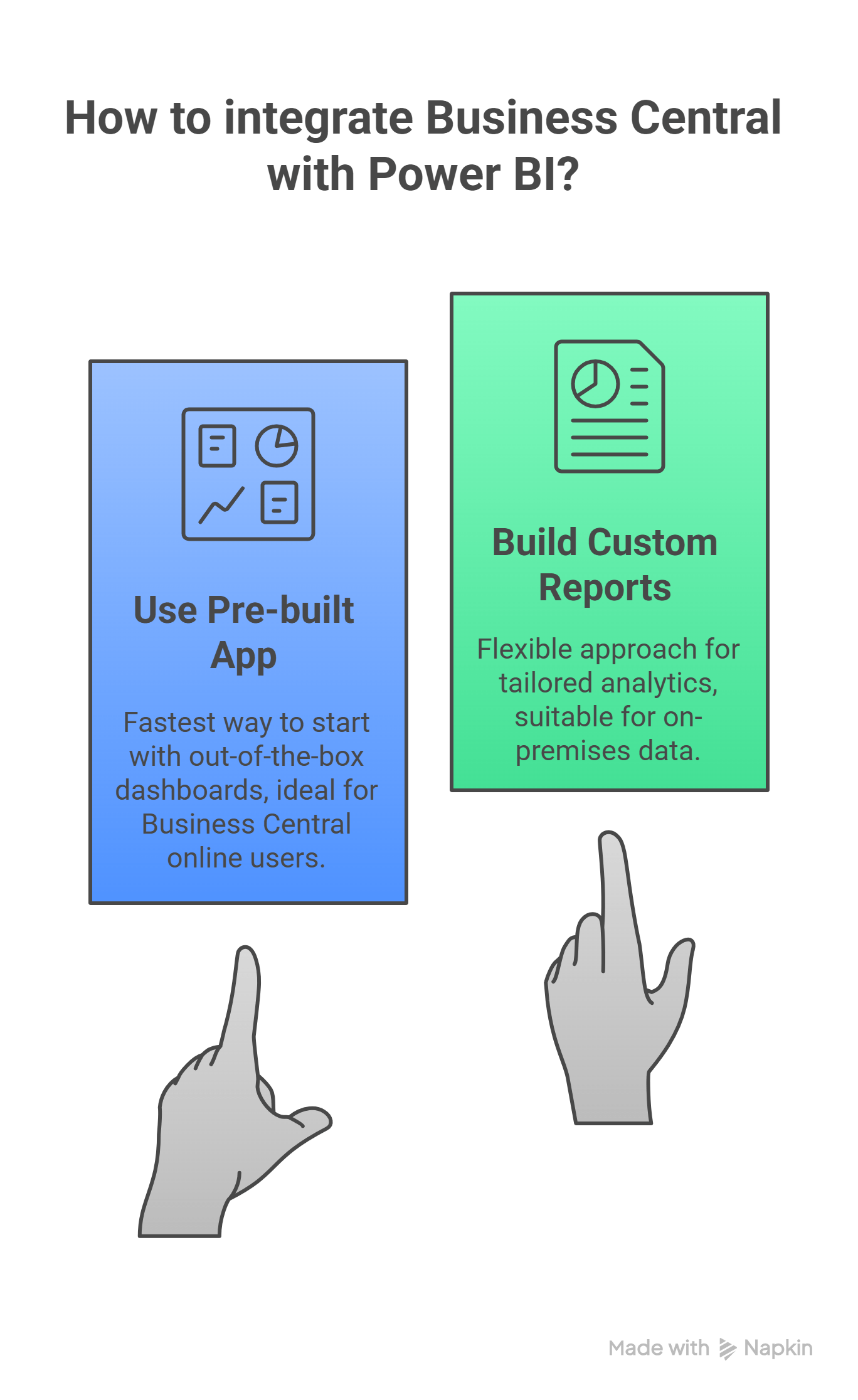
- Using the Pre-built Power BI App for Business Central – the fastest way to get started with out-of-the-box dashboards (ideal for Business Central online users).
- Building Custom Reports with Business Central Data (OData or APIs) – a flexible approach for tailored analytics or on-premises data.
We’ll outline both methods below.
Option 1: Using the Power BI Content Pack (Pre-built App)
Microsoft provides an official Power BI app for Dynamics 365 Business Central, which includes a set of pre-built dashboards and reports. This is the simplest way to jumpstart your analysis if you are using Business Central online (SaaS):
Open Power BI and find the app: Log in to the Power BI service (powerbi.com) or launch Power BI Desktop. In the Power BI Service, navigate to the Apps section on the left menu and click Get Apps. In the AppSource marketplace, search for “Dynamics 365 Business Central”.
Get the Business Central app: Locate the Microsoft Dynamics 365 Business Central app in the results and click Get it now. If prompted, sign in with your Office 365 work account (the same account tied to your Business Central).
Choose environment and data: After the app installs, you will be asked to configure it. Select your Business Central Environment (e.g. Production or Sandbox), and the Company you want to connect to. Then enter your Business Central credentials (Organizational Account with the necessary privileges). Finally, choose the dataset you want to load – for example, Sales, Finance, CRM, etc., depending on the app’s focus.
Load and view reports: The app will connect to Business Central and automatically populate a set of ready-made reports and dashboards with your data. This may take a few minutes for the initial load. Once done, you can view the Finance, Sales, Inventory, or other available dashboards that come with the app, now reflecting your company’s live data. The reports are interactive – you can click on visuals to filter and drill down.
Customize or share (optional): You can customize these out-of-the-box reports to better fit your needs – for example, edit visuals or add new calculated measures. When you’re satisfied, you can share the app's dashboards with colleagues straight from Power BI or even embed them into Business Central’s Role Center for easy access (we’ll touch on embedding shortly).