Copilot for Sales in Dynamics 365 [9 Use Cases & setup Guide]
Jun 09, 2026 Aiswarya Madhu
You open Outlook at 8:15. There are 23 new emails. Three are from customers you need to respond to before 9:30. One is a long thread you have not caught up on since Tuesday. You spend 40 minutes reading, and drafting. By the time your first call starts, you have not touched Dynamics yet.
Let's assume that the call runs long. As usual you take notes in a notebook because there is no time to type and listen at the same time. The meeting ends. You have two more back-to-backs. The notes sit untouched.
By 3 PM, your pipeline review is in an hour. You open Dynamics and realize three opportunities have not been updated since last week. You spend 20 minutes cleaning up before your manager joins.
End of day: 47 emails answered, four customer calls, zero proposals written, one opportunity updated properly, and the rest still needs to be done tomorrow..
This is not a discipline problem, It is a workflow problem. Statistics say a 100-person sales team losing four hours a day to CRM updates, meeting notes, follow-up emails, account research, pipeline logging, and proposal cross-checking is losing nearly 400 selling hours every single day. In a five-day week, that becomes 2,000 hours. Over a year, it becomes a productivity gap large enough to affect pipeline quality, forecast accuracy, customer response time, and revenue performance.
What is the problem here?
The issue is that too much of their time is being captured by manual work that sits around the selling process. All you need right now is a system that helps you unify sales activity, customer context, and CRM data inside the flow of work.
You may have already heard of Microsoft Copilot for Sales. But its value is not simply that it can write emails or summarize meetings. Its real value is that it helps reduce the manual effort sitting between sales conversations and sales execution.
9 Areas Where Copilot for Sales Works Inside Your Dynamics 365 Workflow
From the first customer email in the morning to pipeline reviews and follow-ups at the end of the day, here are the 8 areas where Copilot for Sales fits into a seller's workflow.
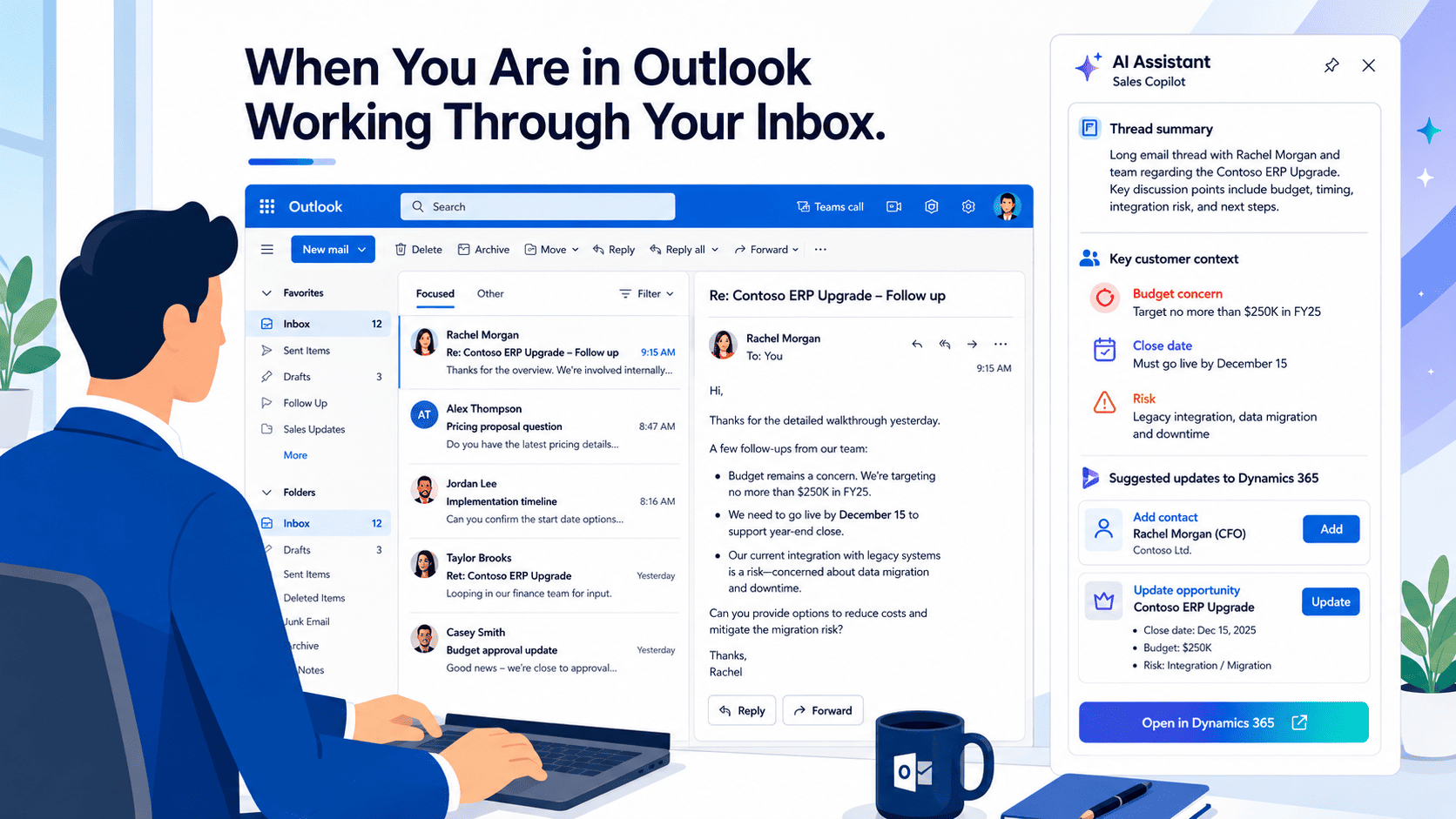
1. When You Are In Outlook Working Through Your Inbox
You open your inbox and there is already a long thread waiting for you. Maybe it is a renewal discussion. Maybe it is a deal that has been moving back and forth for weeks. Before you can even think about replying, you need to figure out what happened, what changed, who is involved, and what the customer is asking for now.
This is where Copilot for Sales can help you. Instead of reading through every email in the thread, you can ask Copilot for a summary. It pulls together the conversation and combines it with the information already sitting in Dynamics 365. You can quickly see if the customer mentioned budget concerns, whether the decision-maker has gone quiet, what the current close date looks like, and whether there are any risks you should be aware of before responding.
Once you understand the situation, Copilot can help draft your response. Because it has access to the opportunity details, account history, and email conversation, it can generate a reply that is grounded in the actual context of the deal. Instead of starting with a blank screen, you are reviewing and refining a draft that already understands the conversation.
As you work through emails, Copilot can also help keep Dynamics 365 updated. If a new stakeholder joins the conversation, it can suggest creating a contact record. If a customer mentions a budget change, revised timeline, or updated requirements, it can recommend updates to the opportunity record. You simply review the suggestion and decide whether to apply it.
By the time you finish your inbox, you have not only replied to customers. You have also updated CRM records, captured new contacts, and kept opportunity data current without jumping between systems.
On mobile: If you are coming out of a customer call and have 90 seconds before your next one, you can record a quick voice note in Outlook mobile. Copilot saves it to the right opportunity record. No typing. No forgetting.
2. When You Are Preparing for a Customer Call
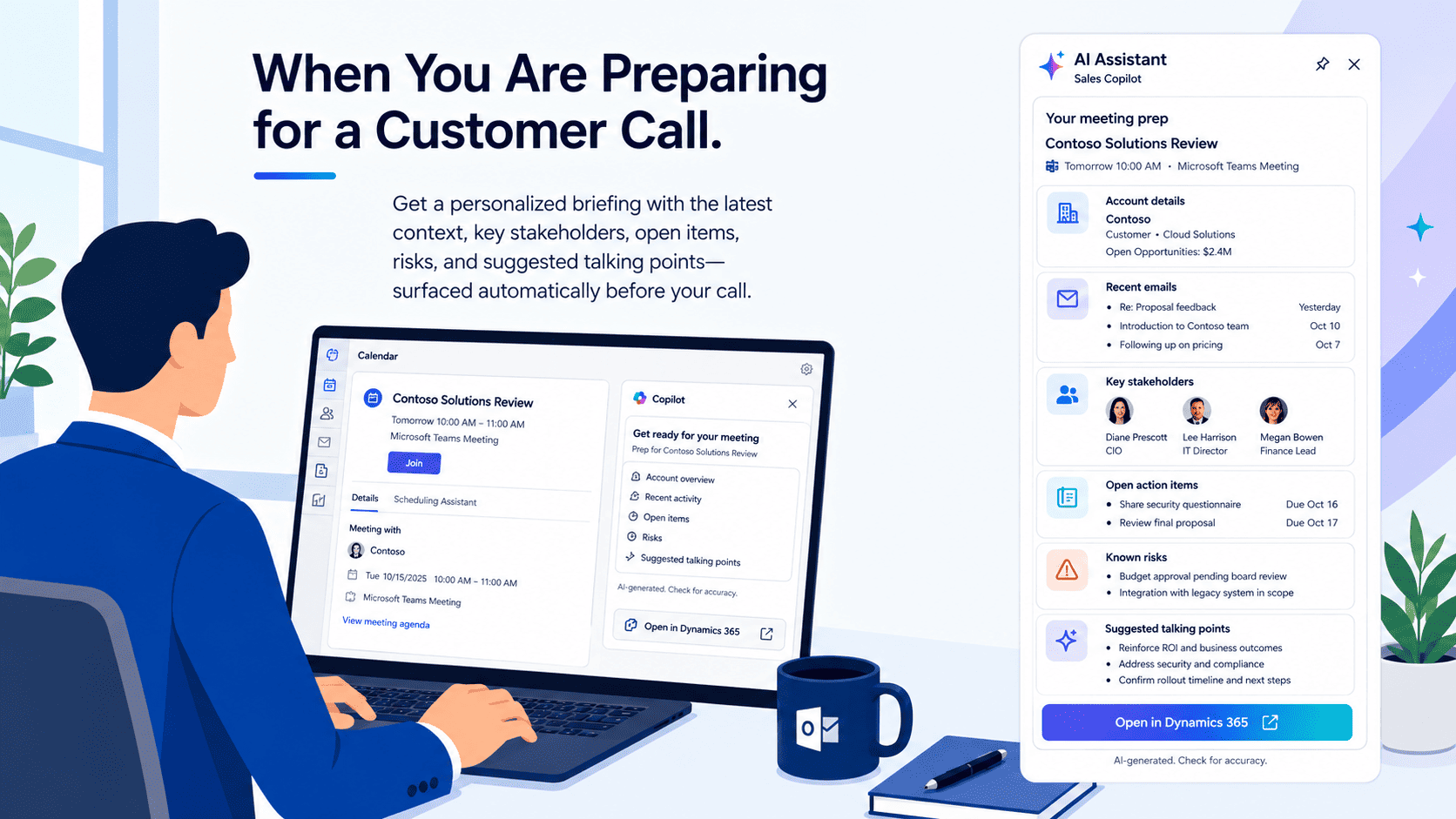
You have a discovery call in an hour with a mid-size account your colleague handed off last month. You have read the brief, but you do not know this account the way he did.
An hour before the call, Teams can send you a preparation card. You do not have to search through Dynamics. You do not have to open old emails. You do not have to ask your colleague for a quick download. The context comes to you.
The card shows the matched opportunity and account from Dynamics 365. It can pull recent emails your team exchanged with the customer, including messages sent by other team members. It can also show the company background, key stakeholders, what was discussed in earlier meetings, open action items, known deal risks, and suggested talking points based on the account profile and your role.
And if you want more, you can ask. Open Microsoft 365 Copilot Chat and type: "Has anyone at our company met with someone from this account in the last 60 days, and what was discussed?" You get a summarized answer drawing from meeting transcripts, emails, and CRM records.
The value you get here is that knowledge does not stay locked in one seller's inbox or memory. If the activity is captured in Microsoft 365 and Dynamics 365, Copilot can help surface it when the next person needs it.
3. When You Are in the Customer Meeting
Now let's look at what happens once the meeting actually starts. You may have faced this before: the customer is explaining their challenges, one stakeholder mentions a competitor, another brings up budget concerns, and the conversation suddenly shifts to timelines or decision criteria.
At the same time, someone asks about a point that was discussed months ago, and you are left trying to listen, respond, check context, and remember what needs to be updated in CRM later.
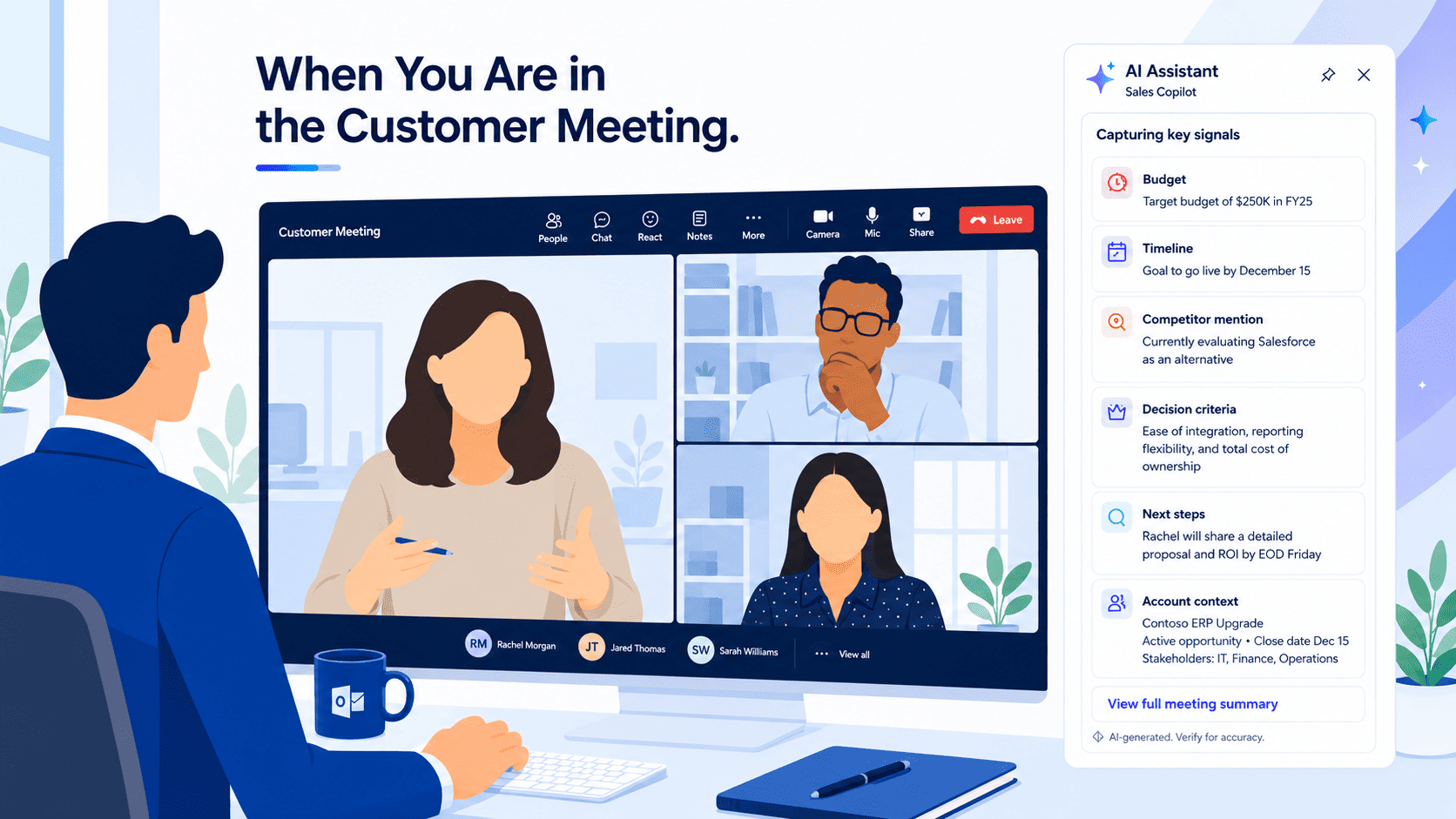
If you have enabled Copilot for Sales, the Sales panel in Teams can keep the connected opportunity and account information available throughout the meeting. That means you can quickly refer to previous interactions, opportunity details, or account context without leaving the call.
As the conversation continues, Copilot can capture important signals from the discussion. Competitor mentions, budget references, timeline changes, requirements, decision criteria, and next steps can all be identified from the meeting conversation.
For a moment, it may sound like Copilot is doing the salesperson's job. It is not. It is there to keep the context ready, so you can focus on the actual conversation instead of rummaging through old notes, CRM fields, and past emails while the customer is still talking.
If an objection comes up, Copilot can also surface relevant context or suggested responses based on similar conversations and sales knowledge already available to your team.
By the time the meeting ends, the key discussion points, customer signals, and follow-up items are already captured, so you are not left sorting through messy notes or trying to rebuild the conversation from memory.
We help sales teams on Dynamics 365 enable, configure, and adopt Copilot for Sales end to end.
4. When the Meeting Is Over
Some of you might resonate with this, especially if your day is packed with back-to-back customer calls.
The meeting ends, but you do not really get to move on. There is still the summary to write, action items to capture, CRM notes to update, and a follow-up email to send before the next call starts.
One call may only leave behind 10 minutes of admin work. But when you have five or six calls in a day, that easily turns into an hour spent cleaning up conversations instead of moving deals forward.
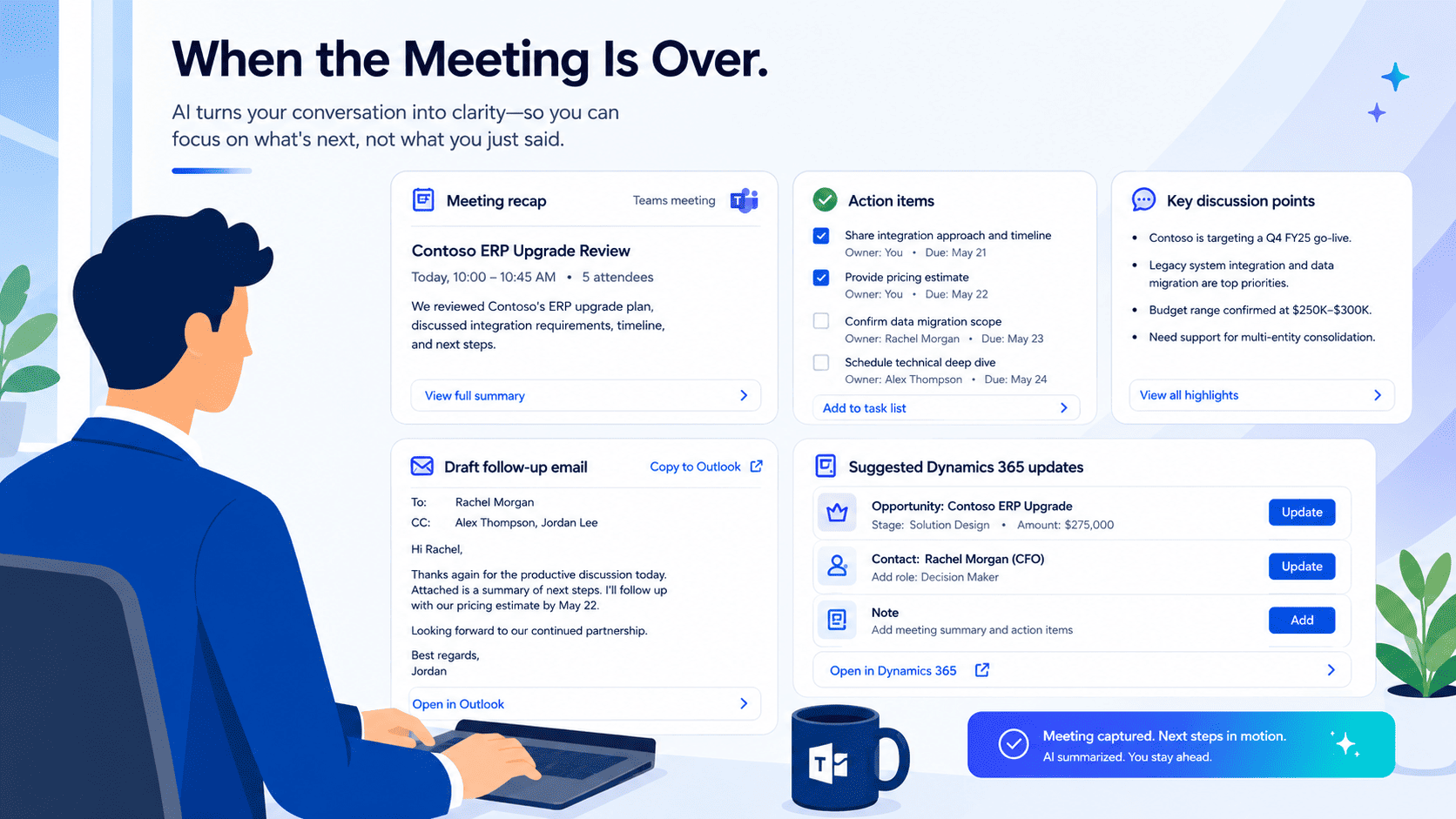
If Copilot for Sales is enabled, you are not starting that cleanup from memory. The Teams recap gives you a ready summary of the conversation, along with action items, questions asked, and important mentions from the call.
You still review it, you still decide what matters, but you are not rebuilding the entire meeting from scattered notes.
From there, the follow-up becomes much lighter. Copilot can help draft the email with the agreed next steps and action items already included, so your job is to check the wording, add judgment, and send it.
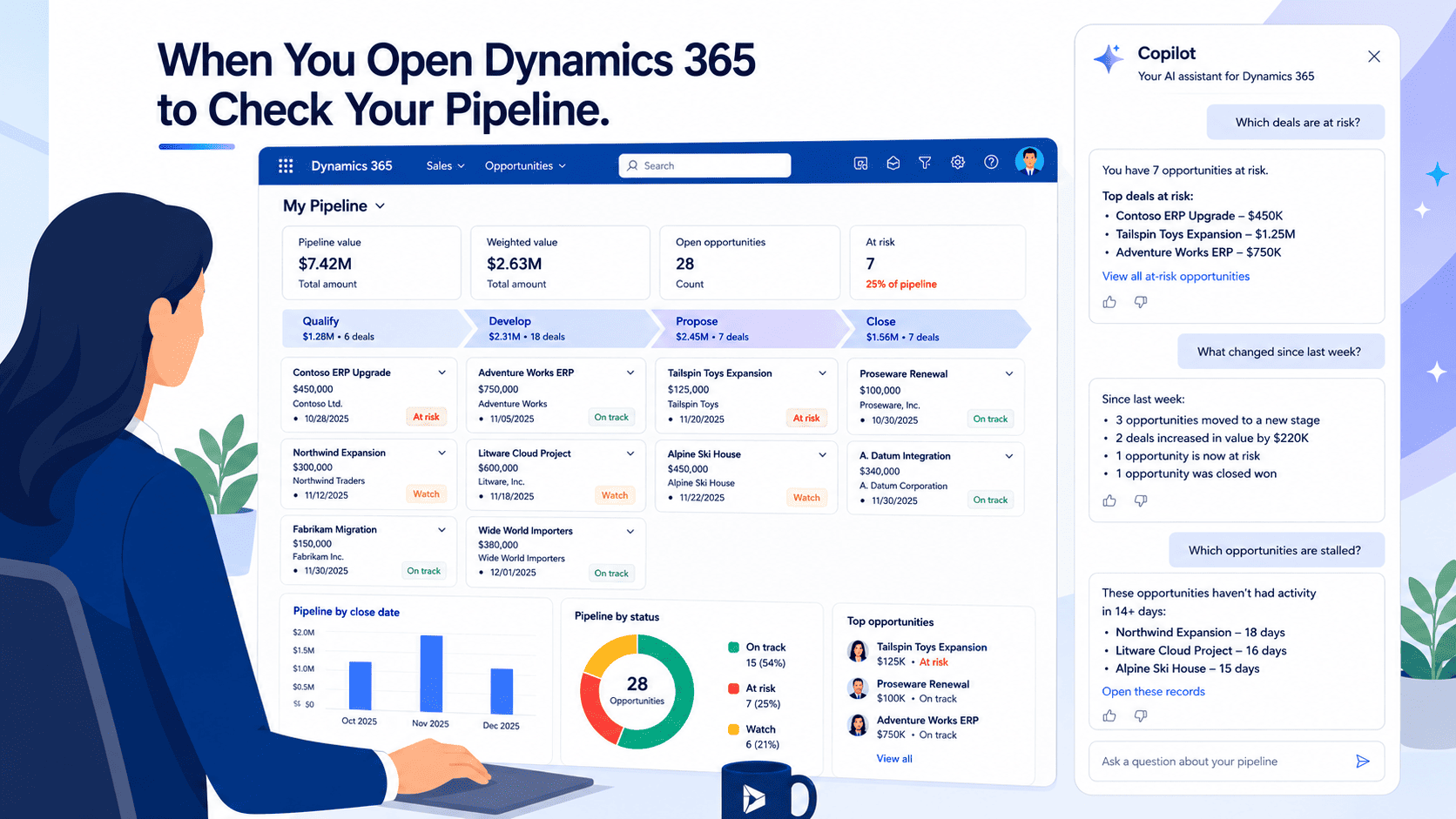
5. When You Open Dynamics 365 to Check Your Pipeline
What is the real need of a CRM?
Is it just an alternative to Excel where salespeople input account details, update opportunity stages, and fill in fields because someone asked them to?
Most of the time, that is what it becomes.
The sales team keeps feeding information into the CRM, but the output is vague. Updating the account is just the foundational input. The real need lies in the output. A CRM should tell you what is happening, which deals need attention, what changed, and where the risk is building.
With Copilot for Sales enabled, that output becomes much easier to get.
You can type into the Copilot panel:
"Show me all my opportunities over $200,000 with no activity in the last two weeks."
The answer comes back from live Dynamics 365 data.
Or ask:
"What changed on the 'X' opportunity since last Monday?"
You get a complete summary drawn from the audit history. The close date moved. The estimated revenue dropped. A new contact was added. You see it in five seconds rather than scrolling through the timeline.
Each opportunity and lead now shows a summary at the top of the record. Before Copilot, opening an opportunity meant scanning the timeline, checking notes, reading email activity, and piecing together the story yourself. Now the story is already assembled when you arrive.
For managers running a pipeline review, the same applies. Instead of asking each rep to update their records before Thursday, the manager can ask Copilot:
"Which deals are at risk based on recent engagement?"
or
"Which reps have the highest number of stalled deals this quarter?"
6. When You Are Writing a Proposal or RFP Response
Now let's take another situation most sales teams know too well.
A customer sends a 24-page RFP on a Tuesday afternoon. Your manager wants a first draft by Thursday. The document is dense, the requirements are spread across different sections, and you already have two other active deals competing for your attention.
Usually, the first challenge is not writing the response. It is figuring out what the customer is actually asking for.
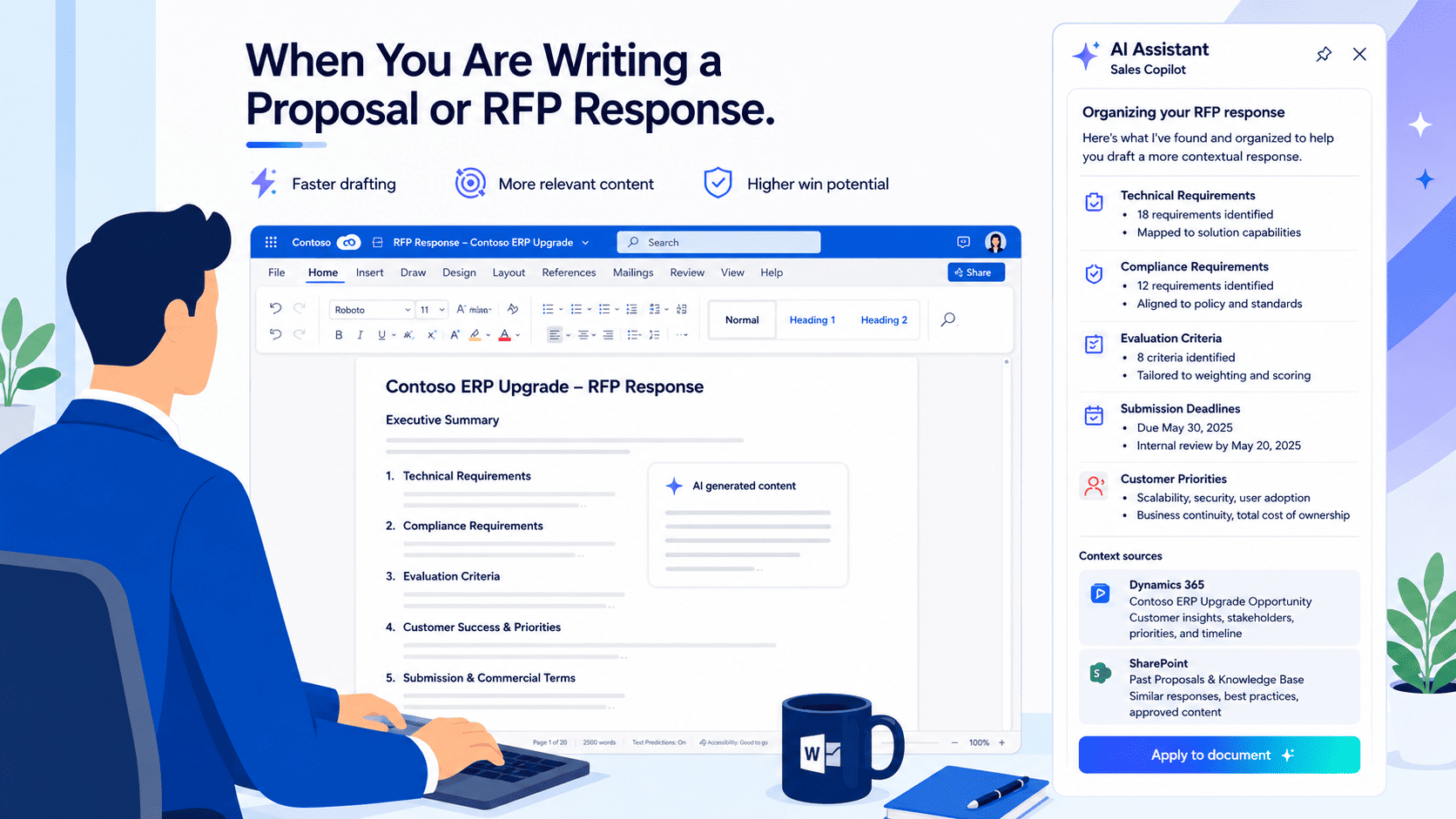
If you have Copilot enabled in Word, you can start by asking it to summarize the RFP and organize the requirements.
Instead of manually working through dozens of pages, Copilot can help you identify:
- Technical requirements
- Compliance requirements
- Evaluation criteria
- Submission deadlines
- Customer priorities and expectations
What normally takes an hour or more of reading becomes a structured brief you can start working from.
The next question is usually: Have we answered something like this before?
If your team maintains proposal content in SharePoint or an RFP knowledge base, a connected Copilot Studio agent can search previous submissions and bring back relevant responses with citations. This helps you quickly identify:
- Requirements already covered in past proposals
- Existing customer success stories
- Reusable compliance responses
- Sections that still need fresh content
Now comes the part that makes the proposal feel customer-specific instead of generic.
Copilot can pull context directly from the Dynamics 365 opportunity record, including:
- Account history
- Key stakeholders and their roles
- Products previously discussed
- Open action items
- Notes from past meetings
- Customer concerns captured during discovery
This is often where the difference between a good proposal and a generic proposal shows up.
For example, imagine the customer mentioned during a discovery call three months ago that implementation timeline was their biggest concern. The note was saved in Dynamics 365, but nobody remembers it today. Copilot can surface that context while you're writing, allowing you to address it directly in the executive summary.
You can then prompt Copilot to draft sections using the information already available across the account.
The first draft can incorporate:
- Customer industry context
- Business challenges discussed in meetings
- Opportunity details
- Customer priorities
- Products under evaluation
You still write the sections that require your expertise and judgment, such as pricing strategy, differentiators, and implementation approach. Copilot helps accelerate the sections that are grounded in information your team has already collected.
Before submitting, you can even ask Copilot to compare the proposal against the original RFP and identify gaps.
It can flag:
- Requirements that were missed
- Sections with incomplete responses
- Evaluation criteria that were not addressed
- Areas requiring additional supporting information
So the value is not just that the proposal gets done faster. It is that the response feels like it was written by someone who has been closely involved with the customer for months, because the proposal is built using the conversations, notes, emails, and CRM context your team has already captured.
7. When You Need to Build a Customer Deck
QBR next week. Executive briefing on Friday. New pitch for a logo account.
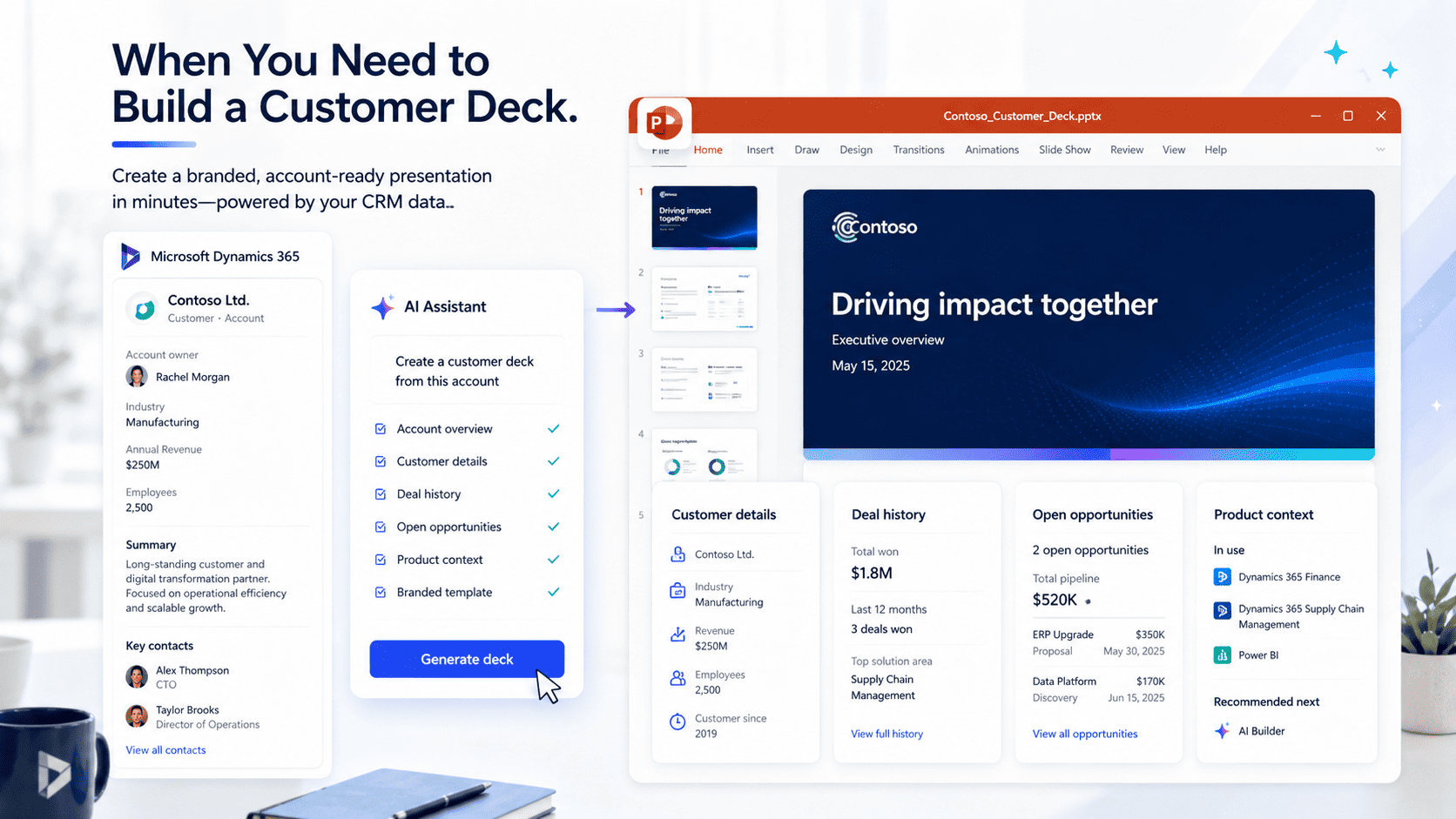
In PowerPoint, you can generate a deck from the account record and a branded template. Customer details, deal history, open opportunities, and product context pull from Dynamics. The slides that would have taken two hours to build manually come together in a fraction of the time.
You still own the narrative. You still make the creative and strategic decisions. But you are not building from scratch. You are editing something that already knows the account.
8. When You Need a Broader Answer Across Everything
You may have been in this situation before, you are five minutes away from a call with a strategic account, and your manager asks, "What is our current relationship with this account, and who knows them best on our side?"
The problem is not that the answer does not exist, it is that the answer exists in too many places. Some of it is in CRM, some of it is in old email threads, some of it is in meeting transcripts, some of it is in calendar history, and some of it is buried in a proposal document on SharePoint.
By the time you collect everything, the customer is already on the call.
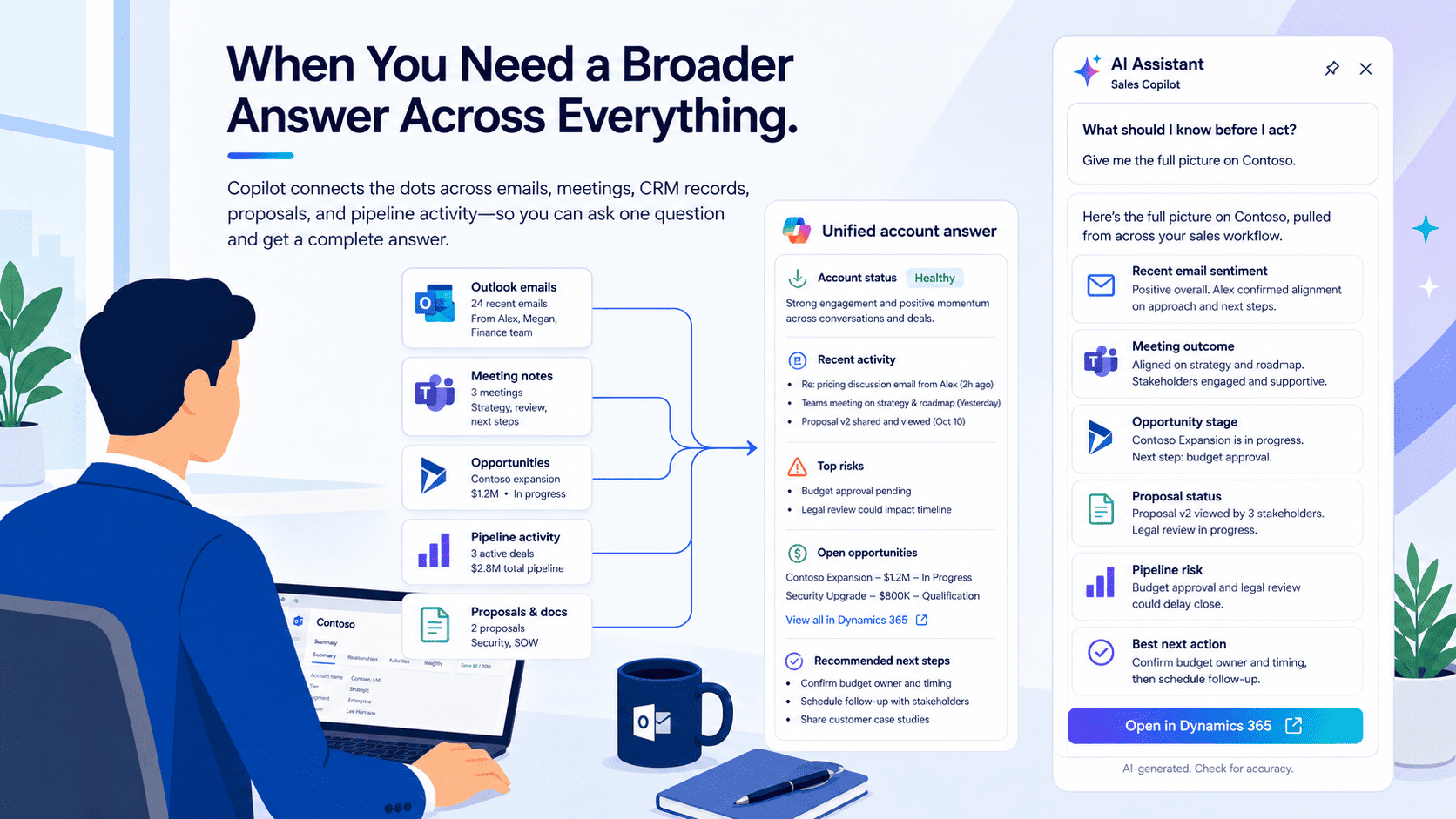
With Microsoft 365 Copilot Chat and Sales agent, you can ask one question and get an answer pulled from CRM data, emails, meetings, calendars, and shared documents instead of checking each system separately.
For example, before a call with an account you did not personally work on, you can ask:
"Summarize everything we know about this account, including recent meetings, open opportunities, and the last three emails our team sent them."
Instead of sending messages to three people and digging through CRM yourself, you get a consolidated view of the relationship. You can see who owns the account, what the current pipeline looks like, what was discussed in the last meeting, what was left open, and whether any budget or timeline concerns came up.
Sales agent can look across email history, meetings, and calendar activity to show who has the strongest recent connection, which helps you know who to involve before sending the next email.
It also helps when competitor mentions start showing up across deals. You can ask:
"Which opportunities in our pipeline mentioned our biggest competitor in the last 60 days, and what was the context?"
Instead of waiting for someone to build a report, you can see which deals are at risk, what customers said, whether pricing was involved, and where the competitive pressure is coming from.
For sales managers, this becomes useful during pipeline and performance reviews. You can ask questions like:
"Which sales stages take the longest on average for our enterprise segment?"
"Which rep has the highest conversion rate from qualified to closed this quarter?"
These are the kinds of questions that usually get pushed to sales ops or left unanswered until someone builds a dashboard, but with Sales agent grounded in live CRM data, the answers can come back in plain language in the same chat window.
The same applies before a critical customer meeting. You can ask:
"Summarize all meetings we have had with this account in the last six months, including who attended, what was discussed, and what action items were left open."
That answer can surface the details that are easy to miss, like a document someone promised but never sent, an integration the customer asked about repeatedly, or a senior stakeholder who joined early calls but stopped attending later.
Those details matter because they change how you walk into the meeting.
You can access the fullest experience through Microsoft 365 Copilot Chat or the Sales agent in Teams, where upcoming meetings can appear in the left rail and open into a full pre-meeting briefing. Sales agent is also available inside Outlook, Word, PowerPoint, Excel, and Dynamics 365, so the same sales context follows you across the tools you are already using.
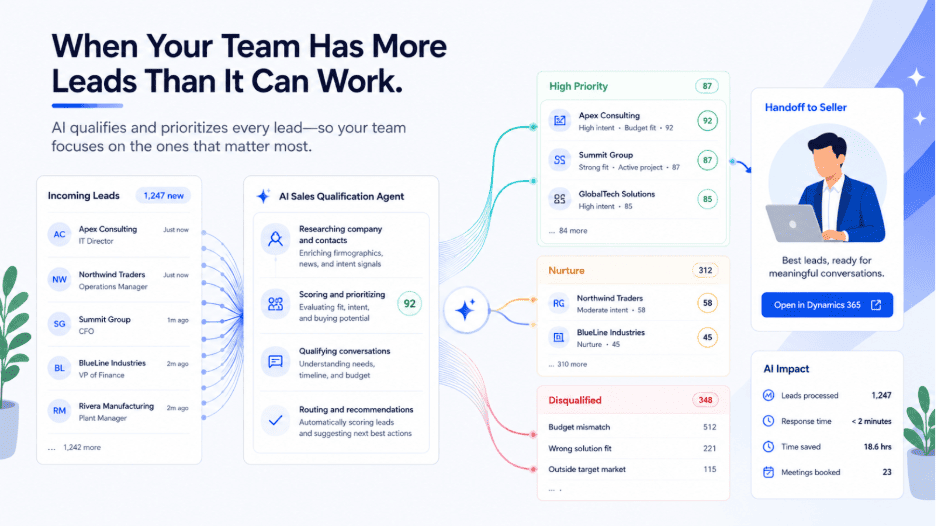
9. When Your Team Has More Leads Than It Can Work
You may have seen this happen after a webinar, campaign, trade show, or product launch, where 100 leads come into CRM within a short window and your inside sales team simply cannot work all of them at the same speed.
The problem is not lead volume alone, it is not knowing which leads deserve attention first. If 100 leads come in and your team can realistically work only 30 that week, the remaining 70 do not just sit in a queue, they create risk because some of them may be the strongest opportunities of the quarter.
If Sales Qualification Agent is enabled in Dynamics 365, the agent can start working as soon as a new lead is created or materially updated. The rep does not need to open the record first, and the agent does not wait for someone to manually assign the queue.
It researches each lead across CRM data, web information, and connected internal knowledge sources, then evaluates fit, intent, recency, and engagement using your configured qualification criteria.
So before a rep touches the lead, the record can already include company background, related accounts and contacts, strategic priorities, financial or market signals, suggested next action, competitor context, and fit against your ideal customer profile.
From there, the agent can work in two modes.
In Research-only mode, it prepares the research, evaluates fit, and drafts an outreach email. The seller reviews the information, checks the email, and decides whether to send it.
In Research-and-Engage mode, the agent can send personalized outreach through a shared mailbox, follow up based on engagement, respond to replies, and hand over the lead when it detects positive purchase intent. If the lead does not meet the criteria, it can be disqualified with a reason code and supervisor notification.
When a rep finally receives the lead, they are not starting from zero. They can see the company context, what the prospect responded to, what buying signals appeared, and what the next recommended step should be.
That changes what happens to those 100 leads.
Your reps can still focus on the 30 leads they would have worked manually, while the agent researches, scores, engages, or filters the rest. Leads that would have waited days can receive outreach much faster, and the sales team can spend more time on prospects that are already showing stronger intent.
How to Enable Microsoft Copilot for Sales
One of the most common questions we hear is: "How difficult is it to enable Copilot for Sales?"
The answer depends on what you want Copilot to do.
If your goal is to enable meeting summaries, email drafting, CRM summaries, opportunity insights, and Copilot chat inside Dynamics 365, most organizations can get started with an experienced Dynamics 365 administrator.
However, if you want autonomous lead qualification, AI-powered outreach, Copilot Studio customization, advanced knowledge grounding, or multi-system AI agents, the implementation becomes significantly more complex and usually requires specialist expertise.
Level 1: Basic Copilot Setup
Most internal Dynamics 365 administrators can complete the foundational setup within a few days.
This typically includes:
- Verifying Dynamics 365 Sales and Microsoft 365 Copilot licensing
- Enabling Copilot in Dynamics 365 Sales
- Deploying Copilot for Outlook and Teams
- Configuring Teams transcription for meeting recaps
- Enabling server-side synchronization
- Turning on audit history for opportunity and account insights
- Activating opportunity summaries, meeting preparation, and CRM chat experiences
Once completed, sellers can begin using Copilot for:
- Meeting preparation
- Email drafting and summarization
- Opportunity summaries
- Lead and account insights
- CRM record updates
- Natural language CRM queries
For many organizations, this level alone delivers immediate productivity gains.
Level 2: Customizing Copilot for Your Sales Process
As adoption grows, many teams want Copilot to understand their business language, sales process, and customer information more accurately.
This involves:
- Customizing opportunity and lead summaries
- Adding custom fields to Copilot-generated insights
- Configuring SharePoint knowledge sources
- Creating sales terminology, synonyms, and business glossaries
- Building deal rooms and account collaboration workspaces
- Improving meeting preparation experiences
This stage usually requires Dynamics 365 customization skills and a solid understanding of your sales process.
Level 3: Where Most Organizations Need Expert Help
This is where the implementation moves beyond configuration and into AI solution architecture.
Examples include:
- Sales Qualification Agent
- Autonomous lead engagement
- AI-driven lead scoring
- Copilot Studio customization
- Knowledge-grounded AI responses
- Dataverse Model Context Protocol (MCP)
- Advanced CRM and SharePoint grounding
- Multi-agent sales workflows
Implementing these capabilities often requires:
- Azure App Registrations
- Dataverse Application Users
- Shared Mailbox Architecture
- Server-Side Synchronization Design
- BANT and ICP Qualification Logic
- Security Role Configuration
- Copilot Credit Capacity Planning
- DLP and Compliance Governance
This is typically where organizations engage a Microsoft partner or experienced Copilot consultant because a missing prerequisite can silently break functionality. For example, missing server-side synchronization prevents autonomous outreach emails from being sent, while missing Teams transcription prevents meeting recaps from being generated.
Our Recommendation
Most organizations should start by enabling the core Copilot capabilities and validating adoption with a small group of sellers. Once the sales team is actively using meeting summaries, email assistance, CRM insights, and pipeline intelligence, you can evaluate more advanced capabilities such as Sales Qualification Agent, autonomous outreach, and custom Copilot experiences.
If you are considering advanced Copilot capabilities and want to understand the technical prerequisites, licensing implications, governance requirements, and implementation effort, schedule a consultation with our Dynamics 365 and Microsoft Copilot specialists. We can help you determine which capabilities are realistic for your environment and which ones require a more structured implementation approach.
What Users Are Saying on Trusted Review Platforms
User reviews from platforms such as G2, Capterra, and Gartner Peer Insights give a practical view of how Copilot for Sales is being used in real workflows. The feedback is mostly positive around productivity, CRM updates, Outlook and Teams integration, and meeting support. At the same time, users also point out the need for human review, proper setup, and training.
★★★★☆ Less Manual CRM Work
One enterprise reviewer described Copilot for Sales as a "Powerful Sales Enablement tool." The user highlighted how it helps capture data from Dynamics 365 and Salesforce, manage contacts from Outlook, create Teams meeting transcripts, and generate personalized emails.
This shows that users are seeing value in reduced manual CRM activity and faster access to customer context.
★★★★☆ Better Use of Outlook and Teams
Reviewed on G2
Another reviewer called the experience "Seamless Microsoft 365 Integration with Smart Meeting Summaries and Prep." This is one of the strongest benefits mentioned across reviews, especially for teams already working inside Outlook, Teams, and Dynamics 365.
Copilot for Sales helps sellers stay inside the tools they already use instead of constantly switching between email, meetings, notes, and CRM records.
★★★★☆ Reduced Data Entry Effort
Reviewed on G2
A mid-market reviewer said their need for manual entries had been "reduced considerably." For sales teams, this is a meaningful benefit because CRM updates often take time away from active selling.
Copilot helps turn conversations, emails, and meeting activity into usable CRM inputs, making it easier to keep customer records updated.
★★★★☆ Faster Meeting Notes and Follow-Ups
A Microsoft 365 Copilot reviewer said the tool helped generate meeting minutes and action items, saving a significant amount of time. While this review refers to the broader Microsoft 365 Copilot experience, the same benefit connects closely with sales workflows.
Meeting summaries, follow-up notes, and next steps become easier to capture and act on, which can help sellers move faster after customer conversations.
★★★★☆ Stronger Value for Microsoft-First Teams
Reviewed across G2, Capterra, and Gartner Peer Insights
The review pattern is clear. Copilot for Sales delivers the most value when sales teams already work heavily inside Dynamics 365, Outlook, Teams, and Microsoft 365.
In a Microsoft-first sales environment, users benefit from faster CRM updates, easier meeting preparation, cleaner follow-ups, and better access to customer information.
Are You Ready to Put Copilot for Sales to Work?
Surveys and early enterprise experiences have already shown where Copilot for Sales can make the strongest impact: Forrester projected a 125% to 468% ROI over three years, with a net present value of $12.7 million to $47.5 million for the composite organization.
It also projected a 3.5% to 8.2% increase in total revenue, driven by more deals worked, better win rates, and higher transaction values.
The admin gap is just as clear. Sellers spend an estimated 91.5 hours per month on sales-related administrative work. Copilot for Sales could save around four hours per seller each week, while one global sales practice lead reported saving 10 hours per week on meeting prep, email writing, and finding information.
Well, the benefits you can get from Copilot for Sales are clearly many, if you know where and how to use it.
The numbers already point to the opportunity: higher ROI, improved revenue, more selling time, faster follow-ups, and fewer hours lost to admin work. But the real value depends on how well Copilot fits into your sales process, your CRM setup, and the way your team actually works every day.
If you are interested in understanding how your business can make use of Microsoft Copilot for Sales, get in Touch with Our Dynamics 365 Specialists to See Where Copilot for Sales Fits Your Sales Workflow.
Frequently Asked Questions
Is Copilot for Sales worth the additional cost if we already have Dynamics 365 Sales Enterprise?
Dynamics 365 Sales Enterprise includes the embedded Copilot experience inside the CRM. What it does not include is the experience that activates inside Outlook and Teams, which is where most sellers spend the majority of their day.
The additional cost is the Microsoft 365 Copilot license at $30 per user per month. As of October 2025, Microsoft bundled Copilot for Sales into this license at no extra charge, so you are not paying a separate Copilot for Sales fee on top of the Microsoft 365 Copilot fee. Whether it is worth it depends on how heavily your team uses Outlook and Teams for customer communication. If sellers are managing their day through email and video calls rather than through the CRM directly, the Outlook and Teams integration is where most of the time savings come from.
What licenses do we need to get the full Copilot for Sales experience?
You need two things working together: a Dynamics 365 Sales Enterprise or Premium license, and a Microsoft 365 Copilot license assigned to each user. The Dynamics license gives you access to the CRM. The Microsoft 365 Copilot license activates the Copilot for Sales experience in Outlook, Teams, and other Microsoft 365 apps. Without both, you get a partial experience. Some features like Conversation Intelligence also require Sales Enterprise or Premium specifically, and the meeting recap experience with the Sales tab in Teams requires Teams transcription to be enabled by your admin.
Can Copilot for Sales update our Dynamics 365 records automatically, or does a sales person still have to review and approve each change?
Copilot recommends updates and the seller approves them. For example, if an email contains a new budget figure or a revised close date, Copilot surfaces a suggested field update with an Accept or Reject control. The seller reviews and confirms before anything changes in Dynamics. For the Sales Qualification Agent in Research-and-Engage mode, the agent sends outreach emails and engages leads autonomously, but all activity is logged to the lead record so sellers have full visibility into what the agent did and why. The system is designed to keep humans in control of decisions while removing the friction of manual data entry.
Does Copilot work inside Microsoft Word and PowerPoint, or just Outlook and Teams?
Yes, it works in Word and PowerPoint as well, though these surfaces require the Microsoft 365 Copilot license. In Word, Copilot can pull the opportunity summary, account history, key contacts, and open action items from Dynamics directly into a document, which is useful when drafting proposals, RFP responses, or customer briefs. In PowerPoint, it can generate slides using customer details pulled from the account record and a branded template. These integrations are less mature than the Outlook and Teams experience but are part of the same license.
What is the Sales Qualification Agent and how is it different from standard lead scoring?
Standard lead scoring in Dynamics 365 assigns a score to a lead based on attributes and behavior. The Sales Qualification Agent goes further by actively working on the lead. It researches each lead using CRM data, web sources, and any internal knowledge you have configured, assesses fit against your Ideal Customer Profile, and in Research-and-Engage mode sends personalized outreach emails, follows up on non-responses, answers prospect questions, evaluates BANT signals through the conversation, and hands qualified leads to a human seller with a full briefing already in the CRM. In Research-only mode it does the research and drafts the outreach but leaves sending to the seller. It is generally available as of October 2025.
How long does it typically take to see measurable time savings after deploying Copilot for Sales?
The fastest results come from the Outlook and Teams surfaces, typically within the first two to four weeks for sellers who are actively processing customer emails and running Teams calls. Meeting recaps, email summaries with CRM context, and one-click CRM updates are the highest-frequency use cases and the ones where sellers notice the change most quickly. Deeper ROI from the Sales Qualification Agent, Conversation Intelligence dashboards, and pipeline query improvements typically takes 60 to 90 days as the system accumulates call data, lead data, and CRM activity to work from.
What metrics should we track to measure whether Copilot for Sales is delivering value?
The most meaningful metrics are behavioral ones tied to specific workflow changes rather than feature usage rates. Track average post-call documentation time before and after deployment. Track CRM data completeness scores on key opportunity fields. Track lead response time, which is one of the highest-impact metrics for conversion and one the Sales Qualification Agent directly improves. Track win rate for opportunities where the seller used the pre-meeting briefing versus those where they did not. And track pipeline forecast accuracy, which improves as CRM data quality improves. Usage metrics like number of email summaries generated are leading indicators, but time savings and pipeline quality are where the business case is built.
Does the Copilot for Sales output quality match what you would get from ChatGPT or other standalone AI tools?
For general writing and reasoning tasks, a standalone general-purpose AI may feel more capable. For sales-specific work grounded in your actual CRM data, Copilot for Sales has a structural advantage that standalone tools cannot replicate: it has live access to your Dynamics records, email history, meeting transcripts, and calendar context. A general AI can only work with what you paste into it. Microsoft evaluated the Sales agent against ChatGPT across 547 sales-specific prompts on a mirrored CRM dataset and reported stronger performance in accuracy, relevance, and completeness because of this grounding advantage. The trade-off is that Copilot is tightly integrated with the Microsoft ecosystem, and teams with non-Microsoft tools in their stack will see reduced value.
What happens to our CRM data? Does Microsoft use it to train the underlying AI models?
No. Your Dynamics 365 data is used only to ground Copilot's responses for your users and is never used to train the underlying Azure OpenAI models. The data is accessed temporarily in the context of generating a response and is not retained or used for model improvement. Copilot complies with GDPR policies and follows Microsoft's documented responsible AI practices. The same security and compliance controls that govern your Dynamics 365 data, including customer-managed encryption keys, data residency settings, and audit logging, apply to how Copilot accesses that data.
Recent Posts

Dynamics 365 Activate: Do You Still Need a Migration Partner?
Oct 05, 2026

Tableau to Power BI Migration: A Practical Guide
Sep 09, 2026
SAP ECC to Dynamics 365 Finance & SCM Migration Guide
Sep 09, 2026
Category
Our Expertise



About Author

Aiswarya Madhu
Aiswarya Madhu is an experienced content writer with extensive expertise in Microsoft Dynamics 365 and related Microsoft technologies. With over four years of experience in the technology domain, she has developed a deep understanding of Dynamics 365 applications, licensing, integrations, and their role in driving digital transformation for organizations across industries.
Never Miss News
Want to implement Dynamics 365?
We have plans which will meet your needs, and if not we can tweak them around a bit too!