Business Central Payables Agent [What Finance Teams Need to Know]
Jul 16, 2026 Aiswarya Madhu
"Has this invoice been entered yet?"
"I thought it was still waiting for approval."
"Did anyone check the shared inbox?"
"We missed the discount because it sat there for a week."
These are familiar conversations for accounts payable teams. Vendor invoices arrive as PDFs, move between inboxes and spreadsheets, and wait for someone to open them, retype the details into Business Central, select the correct accounts, and send them for approval.
The work is repetitive, but the consequences are not. A mistyped amount can delay reconciliation. A misplaced invoice can hold up payment. A stalled approval can lead to late fees, missed discounts, and difficult conversations with vendors.
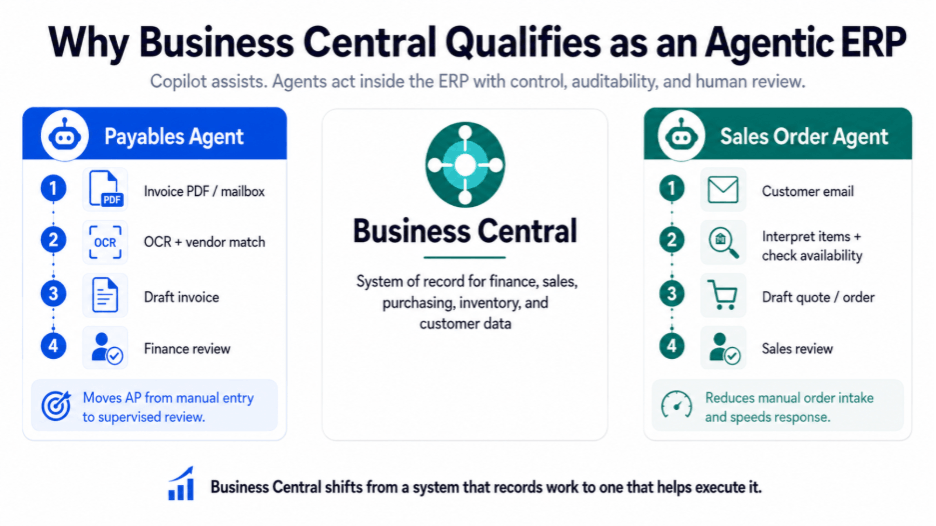
Microsoft's Payables Agent for Dynamics 365 Business Central is designed to reduce this manual effort. It monitors an invoice mailbox, reads supported PDF attachments, identifies vendors, and prepares draft purchase invoices for review.
It does not remove human control. A finance user still reviews, corrects, and finalizes every invoice before it reaches the ledger. The difference is that the team spends less time entering data and more time reviewing exceptions and making accounting decisions.
This guide explains what the Payables Agent does, how it works, where its limits are, what must be prepared before activation, and why having the right Business Central consultant can make the difference between simply turning it on and making it work reliable
The Accounts Payable Bottleneck
Accounts payable is one of the most repetitive and expensive routine processes in finance.
Invoices arrive in different formats and from different vendors. A finance user must identify the supplier, enter the invoice header, capture every line, assign accounts, validate the details, and route the document for approval.
At scale, that manual work creates a measurable cost.
Ardent Partners reports that manual invoice processing costs about $12.88 per invoice, compared with roughly $2.78 for best-in-class, highly automated teams. Processing speed shows a similar gap. Best-in-class AP teams complete an invoice in about 3.1 days, while other organizations average 17.4 days.
Manual entry, validation, and routing also consume around 15 minutes of employee time per invoice, with labor accounting for an estimated 62% of the total processing cost. Error handling adds further delay. Best-in-class teams report exception rates close to 9%, compared with an industry average of about 22%.
These costs appear in several ways:
- Manual data-entry errors
- Delayed invoice processing
- Higher exception-handling effort
- Missed early-payment discounts
- Slower month-end close
- Skilled finance staff spending too much time on clerical work
Multiply those figures by the monthly invoice volume, and the impact becomes clear. The Payables Agent addresses two of the largest cost drivers directly: the time spent entering invoice data and the errors created by manual handling. It reads incoming invoices and prepares drafts inside Business Central so finance teams can focus on review, exceptions, and approval.
What is Business Central Payables Agent?
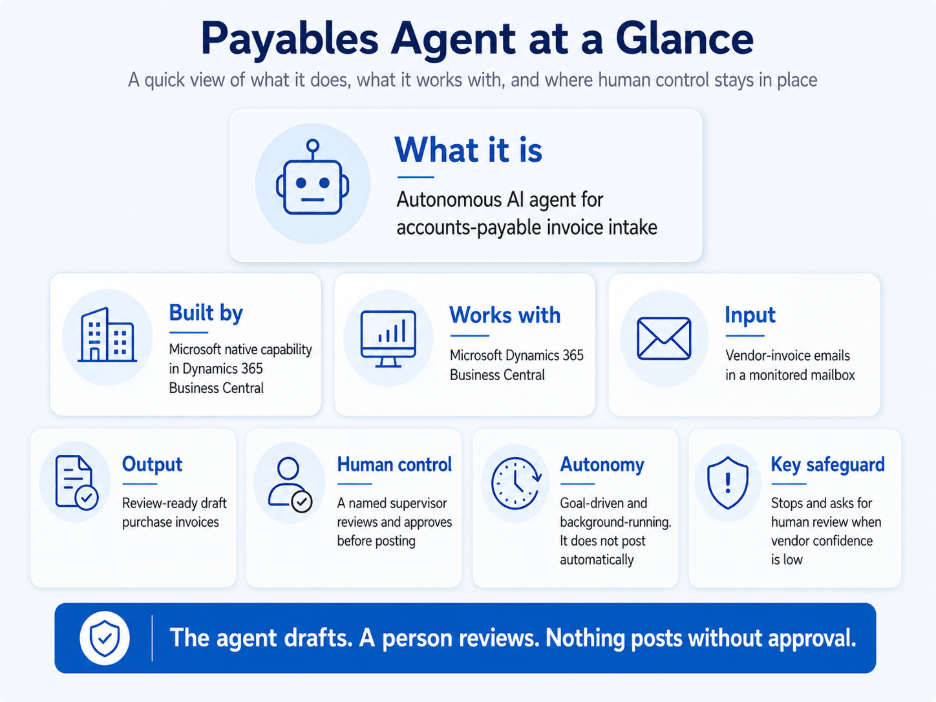
The Payables Agent is a native autonomous AI capability in Microsoft Dynamics 365 Business Central. It monitors a mailbox, reads vendor invoice emails, and prepares review-ready draft purchase invoices without waiting for user prompts.
It never posts invoices automatically. A named human supervisor reviews, corrects, and approves every draft before anything reaches the ledger.
The capability is designed for accounts payable teams that want to reduce manual invoice entry while keeping full control over financial posting.
How the Payables Agent Works?
The easiest way to understand the process is to follow one invoice from the mailbox to the review queue.
1. It Monitors a Dedicated Mailbox
The Payables Agent connects to a dedicated Microsoft 365 shared mailbox, such as invoices@yourcompany.com.
Vendor invoices are sent or forwarded to this mailbox, and the agent monitors it for supported PDF attachments. Once an invoice arrives, the agent picks it up and begins processing it inside Business Central.
The mailbox should be used only for the Payables Agent so unrelated emails, Outlook activity, or other agents do not interfere with invoice processing.
2. It Reads the Invoice
The PDF is processed through Azure Document Intelligence.
The agent extracts information such as:
- Vendor name
- Invoice number
- Invoice date
- Amounts
- Quantities
- Line descriptions
- Payment details
Here's what makes this different from the AP-scanning tools finance teams have wrestled with for years: there are no per-vendor templates to build and no image-capture model to train. Older tools need you to teach them where the invoice number sits on each vendor's layout. The Payables Agent uses generative AI to understand the document instead, so a brand-new vendor's invoice is read as confidently as one you've received a hundred times — with zero setup per vendor.
3. It Matches the Invoice to the Right Vendor
After reading the document, the agent compares the extracted details with the vendor records already stored in Business Central.
When it finds a confident match, it links the invoice to that vendor and continues. When the match is uncertain, it pauses and asks a finance user to confirm the correct record rather than making an assumption.
This checkpoint is important because an incorrect vendor match can affect payment details, account coding, tax treatment, and reporting.
When a new vendor is created through the process, the record remains blocked until a person reviews and approves it.
4. It Builds the Draft Using Your Accounting History
This is where intelligent accounting comes in. The agent does not assign vendors or GL accounts without context. It uses your existing Business Central setup and transaction history to identify the likely vendor, suggest the appropriate accounts, and build the draft invoice line by line.
For example, an overhead expense can be coded to the account your finance team typically uses for similar transactions. The quality of those suggestions depends on the quality of the data behind them. A mature environment with clean vendor records and consistent posting history will usually produce more reliable drafts than a newly configured system.
5. A Human Reviews and Finalizes It
The agent organizes each invoice into a thread within the task pane, with multiple review checkpoints built into the process.
First, the user confirms that the incoming email contains an invoice that should be brought into Business Central. Next, they review the draft created by the agent, with the original PDF available for quick comparison. Only after the details are verified does the user finalize the document as a purchase invoice and post it.
The role shifts from entering data to reviewing decisions. At every stage, the process remains under human control, and nothing moves forward without approval.
Also read AI in Business Central: Capabilities, Costs, and Readiness to understand what AI features are available, what they may cost, and how to assess whether your Business Central environment is ready to use them.
What You Need Before Turning It On
The Payables Agent is built into Business Central, so there is no separate application to install. The real work is preparing the environment around it so invoices can move through each phase without unnecessary stops.
1. A Supported Business Central and Exchange Environment
The Payables Agent works with Business Central online and Exchange Online.
Hybrid and on-premises Exchange environments are not supported for mailbox monitoring, so this should be confirmed before setup begins.
For sandbox testing, Allow HttpClient Requests must also be enabled in the Payables Agent extension settings. Production environments do not require this setting.
2. A Dedicated Microsoft 365 Shared Mailbox
Create a shared mailbox specifically for vendor invoices, such as invoices@yourcompany.com.
This mailbox should be used only by the Payables Agent. Do not connect it to another agent or use it for general finance communication.
Microsoft recommends keeping the mailbox internal and having the AP team forward approved invoice emails into it. This gives the finance team an initial fraud and relevance checkpoint before the agent begins processing.
Avoid managing the mailbox directly through Outlook. Reading or deleting messages there can interfere with the agent before it imports them into Business Central.
3. The Right Mailbox Access
Add the relevant accounts payable users to the shared mailbox.
The person who activates and configures the agent needs Read and manage, also called Full Access, permission. An Exchange administrator must grant this permission.
Mailbox permissions can take several hours to become active, so allow time for propagation before starting the activation process.
4. Copilot Credits Billing
The agent uses Copilot Credits when it reads and processes invoices.
Consumption-based billing must therefore be configured in the Business Central Admin Center before activation. Organizations can use prepaid capacity or pay-as-you-go billing.
The expected credit requirement should be estimated using actual invoice volumes and document complexity.
5. Invoice Formats That Fit the Current Limits
The agent processes PDF attachments only.
Current limits include:
- No more than 10 attachments per email
- No more than 10 pages per PDF
- No more than 5 MB per PDF
- Up to 100 emails per day
Emails or files outside these limits may be skipped or sent for manual attention.
6. Clean Vendor Master Data
Vendor matching depends on the quality of the records already in Business Central.
Before activation:
- Remove duplicate vendor records
- Standardize vendor names
- Complete addresses, tax IDs, and other identifying details
- Define who reviews and unblocks newly created vendors
When the agent cannot identify a vendor confidently, it stops and asks for help. Cleaner vendor data means fewer interruptions.
7. Consistent Accounting Data
The agent uses posting history, text-to-account mappings, item references, and the chart of accounts to prepare invoice lines.
For stronger suggestions:
- Review the chart of accounts
- Standardize how similar expenses are posted
- Configure recurring text-to-account mappings
- Maintain item and vendor references
- Remove inconsistent historical coding where possible
The agent reflects the accounting patterns already present in the system. Clean history leads to more reliable drafts.
8. Named Supervisors and Clear Permissions
A person must be assigned to supervise the agent's output.
Decide:
- Who can review and complete agent tasks
- Who can configure or deactivate the agent
- Who approves and unblocks new vendors
- Who owns exceptions and failed tasks
The agent uses a restricted permission set by default. If it needs access to custom pages, fields, or extensions, an administrator may need to extend that permission set.
9. A Defined Review Process
The setup wizard allows you to decide whether users must review incoming emails before the agent begins drafting.
This gives you two operating models:
- Stronger control: A user confirms the email first, then the agent processes it
- Lighter touch: The agent begins processing immediately and users review the draft later
The right choice depends on your fraud controls, invoice volume, and internal approval process.
How to Activate the Payables Agent
Once the prerequisites are ready, the activation process is straightforward.
- Open the Payables Agent from the Business Central role center.
- Select Activate.
- Enable Monitor incoming information.
- Connect the dedicated invoice mailbox.
- Configure how incoming emails should be reviewed.
- Select any additional fields the agent should populate from historical data.
- Assign agent supervisors and user permissions.
- Turn on the Active setting.
- Select Update.
Business Central supports one Payables Agent per company, but multiple users can be given access to its tasks.
The technical activation can be completed quickly. The quality of the result depends more on vendor data, account structure, permissions, ownership, and mailbox discipline.
Where a Business Central Consultant Makes the Difference
Turning on the Payables Agent is straightforward. The setup wizard takes only a few minutes.
The real work is preparing the environment around it. Clean vendor data, consistent accounting logic, the right permissions, and a clear review process determine whether the agent saves time or creates more exceptions.
Most teams can handle the basic setup internally, including creating the shared mailbox, assigning access, and activating the agent.
A partner becomes valuable when the work involves:
- Cleaning and standardizing vendor records
- Reviewing the chart of accounts and posting history
- Configuring text-to-account mappings and custom fields
- Estimating Copilot Credit usage
- Defining supervisor, approval, and exception-handling roles
- Tuning the setup after go-live
Is Your Business Central Ready for the Payables Agent?
Book a free 30-minute readiness assessment to review your vendor data, accounting setup, permissions, and Copilot Credit model.
Accounts Payable AI Agent or Dedicated AP Automation Tool: Which Is Right for You?
Microsoft's Payables Agent is not the only way to automate accounts payable in Business Central. Dedicated platforms such as Continia Document Capture, Zetadocs Capture, Stampli, Tipalti, and Rillion have supported invoice automation for years.
The decision is therefore not whether AP should be automated. It is whether the native accounts payable AI agent in Business Central is enough for your process, or whether your organization needs a broader AP automation platform.
For many Business Central users, the native option is the best place to start. It is already part of the ERP, requires less setup, and removes the need to introduce another application, integration, and vendor relationship.
| Setup | Built into Business Central with relatively light configuration | Requires a separate product, implementation, and integration |
| Invoice capture | Uses generative AI to read invoices without vendor-specific templates | Uses OCR or AI capture, depending on the platform |
| System experience | Works directly inside Business Central | Users may need to work across Business Central and another platform |
| PO matching | Limited in the current release | Often includes two-way and three-way matching |
| Approval workflows | Relies on Business Central or existing approval processes | Usually includes configurable, multi-level approval workflows |
| Duplicate and anomaly detection | Limited compared with specialist platforms | Commonly included in mature AP products |
| Document support | Focused mainly on supported PDF invoices | Often supports scanned files, images, XML, and other formats |
| Language support | More limited today | Often supports multiple languages |
| Pricing | Consumption-based through Copilot Credits | Usually subscription-based, user-based, or priced per invoice |
| Best fit | Moderate invoice volumes and straightforward AP processes | High volumes, complex approvals, matching, and stronger control requirements |
When the Native Payables Agent Is Enough, and When It Is Not
For most Business Central teams, the native Payables Agent should be the default starting point.
It works inside Business Central, prepares invoice drafts close to the ledger, requires no separate portal or integration, and does not add another user license. For moderate invoice volumes and straightforward approvals, it can remove much of the manual data-entry work on its own.
The Native Payables Agent Is Usually Enough If You:
- Process a moderate number of invoices
- Receive invoices mainly as supported PDFs
- Have a relatively simple approval process
- Want to keep users inside Business Central
- Want to avoid another platform, contract, and integration
- Prefer usage-based Copilot Credit consumption
- Still want a finance user to review before posting
Consider a Dedicated AP Tool If You Need:
- Purchase-order or three-way matching
- Multi-stage approvals based on value, department, entity, or role
- Automatic duplicate and anomaly detection
- High invoice volumes across multiple companies
- Support for non-PDF or oversized documents
- Multilingual invoice processing
- Supplier portals, payment automation, or advanced AP analytics
Do Not Replace the Native Agent Too Quickly
Having one or two advanced requirements does not automatically mean you need to abandon the native option.
A Business Central consultant can help determine whether the gap can be handled through existing workflows, light customization, a targeted extension, or a specialist app used only where needed.
The goal is to keep the process as simple as possible and introduce a dedicated AP platform only when your invoice volume, controls, or approval requirements genuinely demand it.
Not sure native is enough?
Book a free 15-minute fit check and we will tell you where the Payables Agent fits and where it does not.
Bottom Line
The Payables Agent can remove a large part of the manual work in accounts payable, but the results depend on how well Business Central is prepared.
That is why having the right Business Central consultant matters. A good consultant does more than activate the agent. They help clean vendor data, standardize accounting logic, configure permissions, define the review process, estimate Copilot Credit usage, and make sure the agent works with your existing customizations.
Turning the agent on may take an afternoon. Making it reliable requires the right setup and guidance.
So, book a free 30-minute readiness consultation with our Business Central experts. We will assess your mailbox, vendor data, accounting setup, permissions, and governance, then tell you what needs to be fixed before activation.
Frequently Asked Questions
Is the Payables Agent a chatbot?
No. The Business Central Payables Agent is an autonomous agent, not a conversational assistant. Unlike Business Central Copilot chat, it works in the background: it monitors a mailbox, reads invoices, and prepares draft purchase invoices for review.
Is it the same as an accounts payable AI agent?
Yes. It is Microsoft's native accounts payable AI agent for Business Central. It reads vendor invoices, matches vendors, suggests account coding, and drafts purchase invoices, while a person reviews and approves each one. Third-party AP tools offer their own agents, so the real choice is whether the native option covers your process.
Does it post invoices automatically?
No. A human supervisor must review, correct, and finalize each invoice before it is posted.
What can it not do yet?
The agent still creates drafts only. A person must review and post every invoice, so it does not replace approval or posting. Capture accuracy also drops on long, multi-format, or non-standard invoices, and invoices needing department, project, or multi-dimension coding often need manual correction. PO and three-way matching, missing at launch, are now supported, so check what your current version handles. Teams that need more than this often pair it with broader ap automation business central setups.
What Is Required to Set It Up?
You need a dedicated Microsoft 365 mailbox, Full Access mailbox permissions, Copilot Credits billing, enabled Copilot capabilities, and a named supervisor.
How Is It Billed?
The agent uses Copilot Credits through prepaid or pay-as-you-go consumption billing. It does not require a separate Business Central user license.
How can we determine whether our environment is ready?
Before automating your dynamics 365 accounts payable workflow, review the invoice mailbox, vendor data, chart of accounts, permissions, ownership, and billing model. A readiness assessment identifies issues to correct before you switch on dynamics 365 accounts payable automation.
Is Your Business Central Environment Ready?
The Microsoft Dynamics 365 Payables Agent can reduce invoice-entry work, but its success depends on the environment around it.
A readiness review should cover:
- Mailbox configuration
- Vendor master data
- Chart of accounts
- User permissions
- Supervisor ownership
- Copilot Credits usage and cost
Recent Posts

Dynamics 365 Activate: Do You Still Need a Migration Partner?
Oct 05, 2026

Tableau to Power BI Migration: A Practical Guide
Sep 09, 2026
SAP ECC to Dynamics 365 Finance & SCM Migration Guide
Sep 09, 2026
Category
Our Expertise



About Author

Aiswarya Madhu
Aiswarya Madhu is an experienced content writer with extensive expertise in Microsoft Dynamics 365 and related Microsoft technologies. With over four years of experience in the technology domain, she has developed a deep understanding of Dynamics 365 applications, licensing, integrations, and their role in driving digital transformation for organizations across industries.
Never Miss News
Want to implement Dynamics 365?
We have plans which will meet your needs, and if not we can tweak them around a bit too!