Business Central On-Premises to Online Migration [A Complete Guide]

Business Central On-Premises to Online Migration [A Complete Guide]

Feb 20, 2026 Aiswarya Madhu

Most people assume that moving from on-premises ERP to the cloud is just a technical upgrade. In reality, Business Central on-premises to online migration is a much bigger shift. It changes how your ERP is operated, how data moves, how upgrades happen, how security is managed, and how the system evolves over time. It is not simply about moving servers. It is about changing the operating model of your core business system.

What Business Central Cloud Migration Really Is (and Isn’t)

If you are coming from a Business Central on-premise environment, you are probably thinking about cloud migration in a very specific way.

It is natural to assume that moving to Business Central online means your existing system is simply being hosted in Microsoft’s cloud.

That is not how Business Central cloud migration works.

Business Central online migration is not application migration. It is database-level data replication followed by platform alignment.

Your on-premise SQL database becomes a source of business data, not a running application. Business Central online connects directly to that database and copies company data table by table into its own Azure SQL database. No Business Central Server is involved. No application logic runs during migration. Users, roles, and permissions inside Business Central are not considered. Only SQL access matters.

Meanwhile, your on-premise environment continues to operate independently and remains the system of record until you explicitly switch over.

Business Central online is a managed SaaS platform. It is continuously updated. It is event-driven. It is designed around configuration, extensions, and supported integration points. It is not designed to carry forward deep database customizations, tightly coupled logic, or on-prem-style behavior.

Approaching the migration as “moving the system” leads to the most common failures. You end up paying for SaaS while still carrying on-prem complexity.

The correct way to think about this migration is that you are moving business data into a new operating model, validating it, upgrading it to match the cloud platform, and then adapting processes to how Business Central online is meant to work.

Also want to know what it actually takes to move Dynamics 365 from on-premises to the cloud? Here’s a practical guide covering migration strategy, data planning, and post-go-live realities.

Core Architecture Behind the Migration

Understanding how the migration is technically executed is essential. Most migration issues happen when teams assume Business Central logic or servers are involved in the data move. They are not.

Business Central on-premises to online migration is a direct database-to-database transfer. Data moves from your source SQL database into the Business Central online Azure SQL database using Azure Data Factory. No Business Central Server is used at any stage of this process.

If you understand that single fact, many common mistakes are avoided.

Key Components Explained

On-premises database

This is your source database. It can be a SQL Server database running on-premises or an Azure SQL database. It contains company data from the base application and any supported extension tables. During migration, this database is treated only as a data source. Business Central application logic does not run here.

Azure Data Factory (ADF)

Azure Data Factory is the service that moves the data. It reads data directly from SQL tables and writes it into the Azure SQL database used by Business Central online. ADF does not understand Business Central. It does not evaluate users, roles, permissions, or business rules. It only requires SQL access.

Pipelines

Pipelines are configurations inside Azure Data Factory that define:

Which tables are copied

The order in which tables are processed

How large tables are grouped

How failures are logged

Data is copied table by table. If a table fails because it is missing or the schema does not match, the failure is recorded and the migration continues with the next table.

Integration Runtime

The Integration Runtime is the secure connection between your source database and Azure Data Factory.

If your source is SQL Server on-premises, you install a Self-Hosted Integration Runtime inside your network.

If your source is Azure SQL, an Azure-managed Integration Runtime is used.

The runtime handles encrypted communication. You do not need to expose your database to the internet or open inbound firewall ports.

Online database

This is the Azure SQL database behind your Business Central online environment. All replicated data is written here first. If required, a data upgrade is run afterward to align the data with the SaaS application version.

Thinking of using the Business Central IW trial to evaluate ERP fit? Here’s a practical overview of what the trial covers, how long it lasts, and what to plan for next.

What Data Is Migrated (and What Is Not)

One of the most common questions we hear is, “What exactly moves to the cloud and what doesn’t?” The short answer is this: Business Central migrates your business data, not your system setup.

The on-premises to online migration uses Azure Data Factory (ADF) to copy data directly at the database level. It works table by table, which is important, because it means each piece of data is moved independently, tracked individually, and doesn’t block the rest of the migration if something goes wrong.

What Actually Gets Migrated?

The focus of the migration is on the data that keeps your business running day to day.

This includes all company-specific tables from the base application. So your customers, vendors, items, chart of accounts, open transactions, and historical financial data all move to the online environment.

If you’re using custom extensions or ISV solutions, their data can also be migrated, as long as the table structures in your on-prem database match what Business Central online expects. When schemas line up, the data moves cleanly. When they don’t, those tables are skipped and logged.

You can also migrate multiple companies, as long as you explicitly select them during setup. Behind the scenes, every table for every company is migrated independently, with success or failure logged so you can review and fix issues without restarting everything.

What Does Not Move to SaaS

Some things are intentionally left behind, and this is by design, not a limitation.

Most system tables don’t migrate because Business Central online manages global and tenant-level settings differently than on-premises.

Users, roles, and permissions also don’t move. In SaaS, identity and access are handled through Microsoft Entra ID, so these are expected to be recreated in the cloud rather than copied from the old environment.

You’ll also notice that record links and some attachments may be missing after migration. These are often tied to user IDs or older schemas that don’t exist in the SaaS tenant. Similarly, extension data may not migrate if versions or table definitions don’t align.

What This Means After Migration

This is where expectations matter.

After the data migration, you should assume that business data is in place, but environment setup is not. You’ll need to recreate users and permissions, run the required data upgrade if you’re moving across versions, and validate that key financial and operational data looks right.

A bit of cleanup before migration goes a long way here. Cleaning up old data and making sure extensions are aligned significantly reduces skipped tables and post-migration surprises.

If you go in expecting SaaS to be a fresh, clean environment with your business data brought forward, the process makes a lot more sense and runs much smoother.
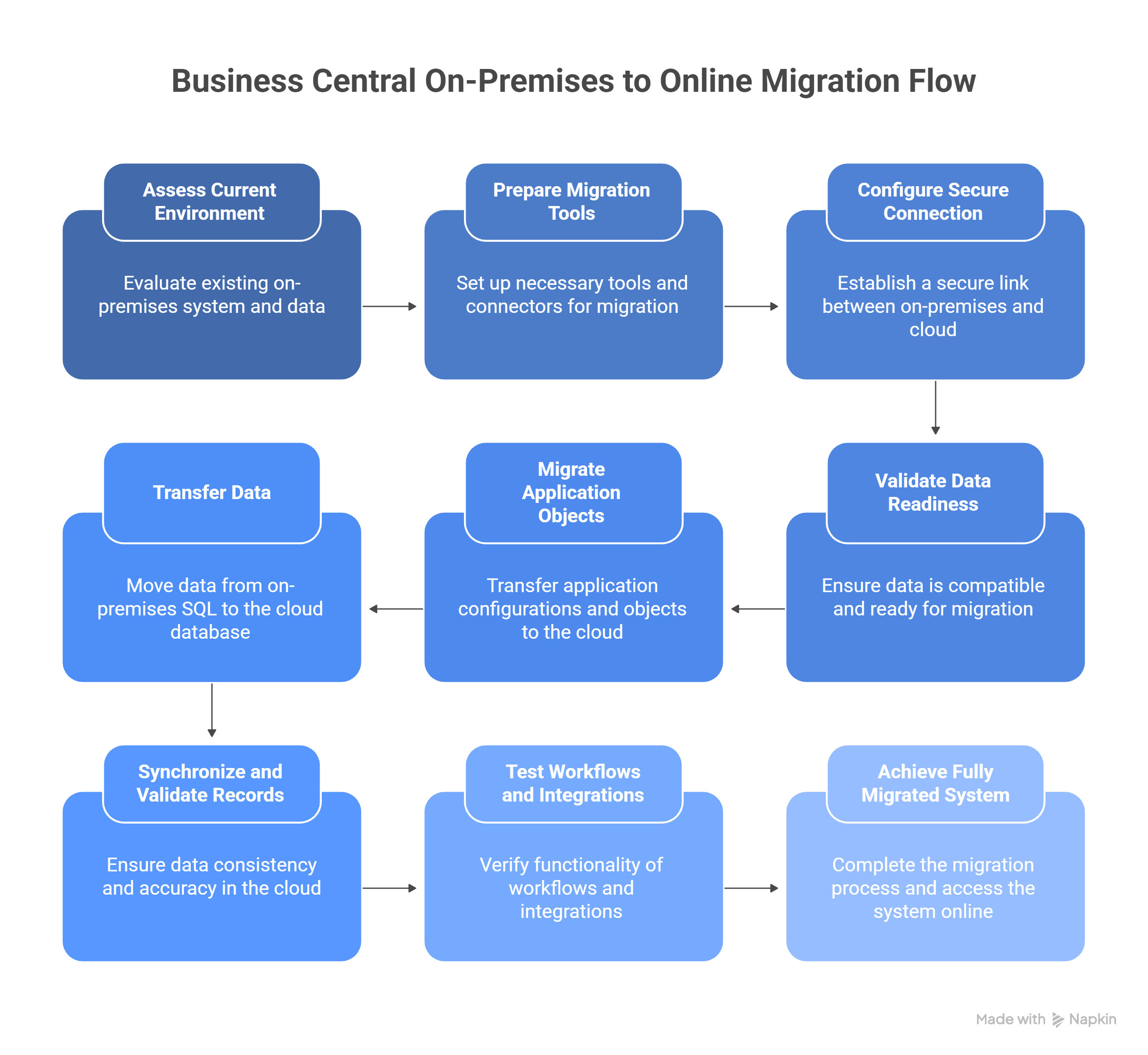
Business Central On-Premises to Online Migration Flow

End-to-End Migration Phases

Here is a phase by phase migration guide to help you get started:

Phase 1: Preparation

The focus here is getting the on-prem environment into a state that can be reliably copied to the cloud. This means upgrading Business Central to a supported version, typically version 25 or later, and confirming that the SQL database is running at compatibility level 130 or higher.

This is also where cleanup matters. Table schemas should be aligned, unnecessary historical data trimmed, and extensions checked for health and compatibility. One critical requirement is ensuring that at least one SUPER user exists in every company. Without this, cloud migration setup cannot proceed.

Teams that invest time here usually avoid data failures during replication. Teams that skip it often end up revisiting this work under pressure.

Phase 2: Cloud Migration Setup

From Business Central online, you run the Set up Cloud Migration assisted guide. Here you select the source product and version, provide the SQL connection string, install and register the Integration Runtime, choose the companies to migrate, and define how often replication should run.

By the end of this phase, the SaaS environment contains empty companies that are ready to receive data.

Phase 3: Data Replication

When data replication runs, Azure Data Factory copies data table by table. Each table is handled independently, so a failure in one table does not stop the rest of the process. All successes and failures are logged for review.

Replication is designed to be run multiple times. Many teams start in a sandbox, validate results, resolve issues, and rerun. At this stage, you should verify financial balances, open transactions, master data, and extension behavior before proceeding further.

Phase 4: Data Upgrade

If the source version is older than the target Business Central online version, a data upgrade is required.

This step is triggered explicitly from the Cloud Migration Management page and cannot be reversed. During the upgrade, Business Central converts platform and application data structures to match the SaaS environment.

Once the upgrade is completed, you can no longer replicate data from the older version. Mixing upgraded and non-upgraded data can corrupt the environment, so this step should only be run after all companies are fully replicated and validated.

Phase 5: Completion and Go Live

This is the final transition to Business Central online. Users are created and permissions assigned through Microsoft Entra ID. Integrations are reconnected, reports and customizations are validated, and the cutover is communicated to users. After go live, the on-prem system should be treated as read-only or fully retired.

At this point, Business Central online becomes the primary system of record.

Planning a Business Central on-premises to online migration?

Supported Source Systems and Versions

Business Central on-premises to online migration supports specific source systems, versions, and SQL configurations. These constraints exist to ensure reliable data replication using Azure Data Factory pipelines.

Before starting migration setup, you should first confirm that your source system and database meet the supported criteria below.

Source System Supported Versions Required Action Before Migration Key Notes
Business Central On-Premises Version 25 and later None Supports direct migration to Business Central online
Business Central On-Premises Versions 14–24 Upgrade to version 25 Required for schema and platform alignment
Dynamics NAV All supported NAV versions Upgrade to Business Central on-premises Custom C/AL code must be converted to extensions
Dynamics GP 2015 and later Use GP migration tools + Intelligent Cloud apps Plan master vs historical data carefully
Dynamics SL 2015 and later Use SL migration tools + Intelligent Cloud apps Requires additional validation
QuickBooks Supported editions via Microsoft tools Use Microsoft migration apps Migrates directly to Business Central online

SQL Server Requirements

Requirement Supported Values Why It Matters
SQL Server Version 2016 or later (2017, 2019, 2022 supported) Required for Azure Data Factory stability and performance
Database Compatibility Level 130 or higher Enables SQL syntax and behavior expected by SaaS pipelines

Common Pitfalls to Avoid

Most Dynamics 365 Business Central on-premises to online migrations don’t fail because the tooling is weak. They fail because teams rush, skip preparation, or assume the wizard will handle everything.

I’ve seen this play out in many environments. Different industries, different partners, different timelines. The patterns are always the same.

Here’s what consistently causes problems, and what you should actively stay away from.

Do not migrate straight into a live production SaaS environment

This is the fastest way to corrupt data and lose confidence internally. Always start in a sandbox. Run the full migration there. Validate balances, open transactions, extensions, and reports. Only when sandbox looks boring and predictable do you even think about production.

If you test in production, production becomes the test. That never ends well.

Do not allow users to transact in SaaS during replication

Once replication starts, SaaS must be treated as read-only. Letting users post entries, create masters, or modify records during replication leads to table locks, sync conflicts, and overwritten data.

Use the Intelligent Cloud permission set properly. If users need access, it should be read access only until final cutover.

Do not skip data cleanup because “it worked fine on-prem”

Old log tables, duplicate masters, orphaned records, and bloated history are silent killers. Azure Data Factory does not care that this data has lived happily on-prem for years.

Clean it before Phase 1. Decide how much history you actually need. Two to three years is usually enough. Dragging everything forward slows pipelines, increases failures, and complicates reconciliation.

Do not assume extensions will just migrate

Extensions are where most migrations stumble.

Custom tables and ISV extensions must match the SaaS schema exactly. If they don’t, tables fail to copy. Some fail loudly. Some fail quietly.

Test every extension in sandbox. Validate data presence, not just installation. If something breaks, rebuild or refactor it before production migration.

Do not run data upgrade before you are truly done replicating

This one is irreversible.

Once you run data upgrade, you cannot safely replicate again from the on-prem source. Mixing upgraded and non-upgraded data corrupts the SaaS database.

Only run data upgrade after:

All companies are replicated

Final sync is complete

You are confident no more on-prem transactions are needed

Do not ignore SQL version and compatibility warnings

If SQL Server is below 2016 or compatibility level is below 130, Azure Data Factory pipelines will fail or behave unpredictably.

Upgrade SQL first. Fix compatibility early. Do not treat this as a “we’ll see if it works” item.

Do not forget integrations and users until go-live week

Old SQL-based integrations, file drops, and custom APIs do not survive SaaS. They must be rewired to web services after migration.

Also, make sure at least one SUPER user exists per company before migration starts. Missing this blocks access at the worst possible moment.

Conclusion

Teams that take the time to prepare the source system, validate data in sandbox, respect the sequencing of replication and upgrade, and adapt to the SaaS operating model usually move to the cloud without disruption.

The migrations that struggle are rarely held back by tooling. The migrations that struggle are rarely held back by tooling. If you are planning a move to Business Central online and want to approach it with the same discipline seen in successful migrations, getting the right guidance early makes a measurable difference. Feel free to get in touch with us to plan, validate, and execute your migration with clarity and confidence.

If you are planning a move to Business Central online and want to approach it with the same discipline seen in successful migrations, getting the right guidance early makes a measurable difference. Feel free to get in touch with us to plan, validate, and execute your migration with clarity and confidence.

About Author

Never Miss News

Want to implement Dynamics 365?


We have plans which will meet your needs, and if not we can tweak them around a bit too!

Field will not be visible to web visitor